WooCommerce Store — the Complete Guide (setup, payments, shipping, SEO)

Launching a WooCommerce store does not end with installing the plugin and adding products. The store also has to calculate prices correctly, accept payments, display the right delivery methods, send messages, update stock and pass data on to analytics.
Most problems appear when every element is implemented separately. Payments work, but they do not change the order status. Parcel lockers show up in the basket, but the selected pick-up point does not reach the shipping system. Products are available, but Google does not index the categories, or it sees thousands of URLs created by filters.
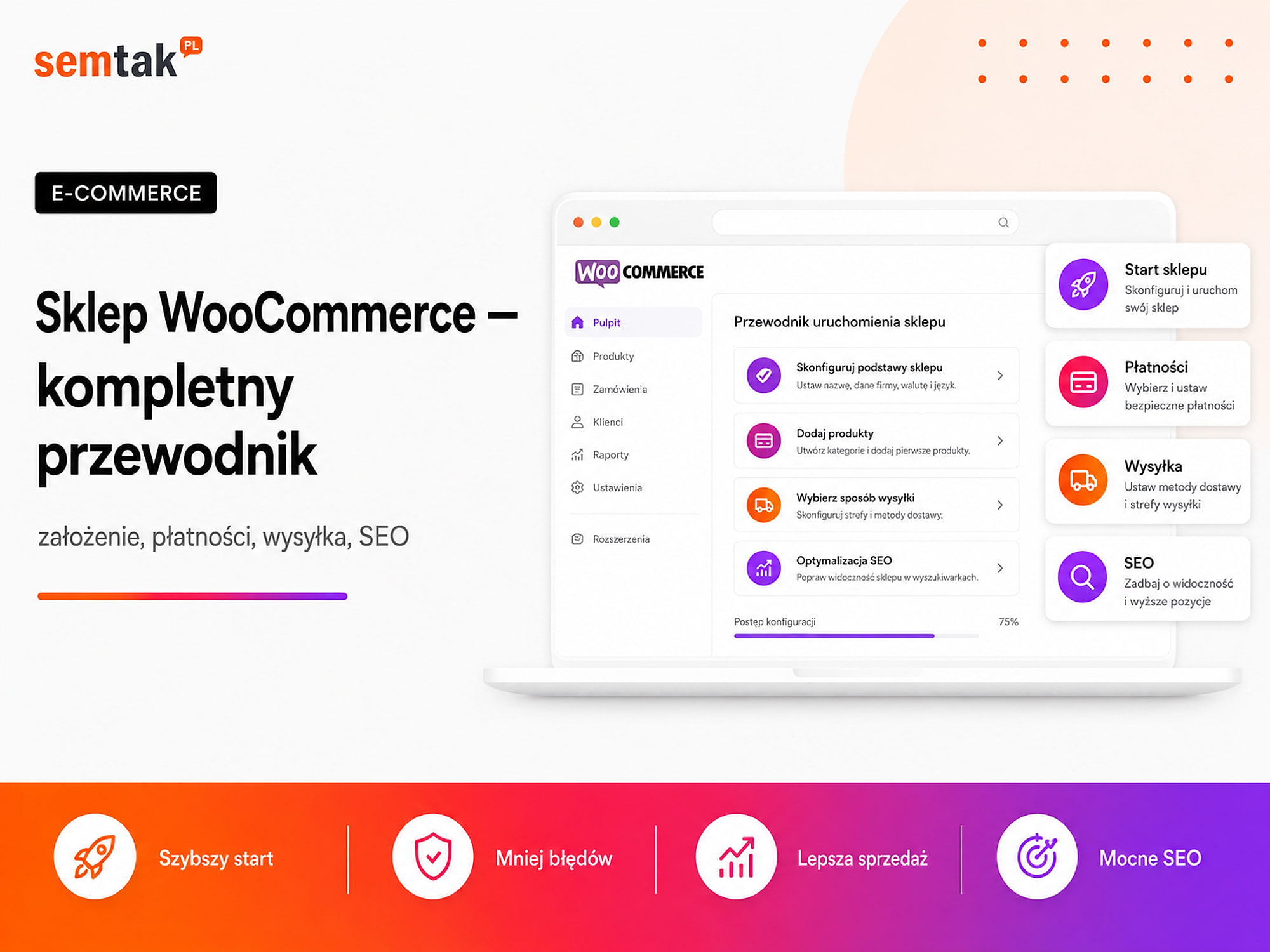
In this guide we will go through the whole process: from planning the store and choosing hosting, through products, payments and shipping, all the way to SEO, analytics, security and pre-launch testing.
In short: a WooCommerce store is an online store running on WordPress that you can develop yourself, move to another server and connect with payments, couriers, accounting, ERP and advertising systems. To be ready to sell, you need not only WooCommerce, but also good hosting, a well-thought-out category structure, correctly configured products, payments, delivery, legal documents, analytics, SEO, backups and tests of the entire order path. Selling abroad? See how to build a multilingual WooCommerce store.
In short (TL;DR)
- WooCommerce is an extension for WordPress that adds products, a basket, orders, payments, delivery and stock.
- It is worth planning the structure of categories, products and URLs before you start the implementation.
- Payments need to be tested not only for a successful transaction, but also for cancellation, error and refund.
- Delivery has to take into account dimensions, shipping zones, pick-up points, labels and the passing of tracking numbers.
- Store SEO begins at the design stage, not after all the products have been added.
- Before going live, place a full test order on both a phone and a computer.
- After launch, someone has to be responsible for updates, backups, monitoring and plugin compatibility.
What makes up a working WooCommerce store?
An online store is a system made up of many connected elements. A mistake in one place can stop the entire purchase process.
| Area | What is it responsible for? | What can go wrong? |
|---|---|---|
| Hosting | speed, database, PHP operation | slow basket, server errors, interrupted imports |
| WooCommerce | products, basket, orders | incorrect prices, stock levels or statuses |
| Payments | collecting and confirming the payment | a paid order stays "pending" |
| Shipping | delivery cost and method | no parcel locker, wrong price, no label |
| Products | offer, variations, photos, stock | purchase of an unavailable variant or wrong price |
| SEO | visibility in Google | no indexing, duplicates, thousands of filter URLs |
| Analytics | measuring behaviour and sales | the purchase is in the store but does not appear in GA4 |
| Integrations | accounting, ERP, Base, warehouse | diverging prices, stock and orders |
| Security | updates, access, backups | a breach, data loss, a long outage |
It is best to treat WooCommerce as a sales hub, not just a page with products.
What is WooCommerce?
WooCommerce is e-commerce software that works as an extension for WordPress.
Once installed, it adds, among other things, products and their variations, categories and attributes, a basket, the checkout process, customer accounts, discount coupons, stock levels, basic payment methods, shipping zones and methods, an order-management panel and basic sales reports. The WooCommerce core itself does not require a licence fee — this does not mean, however, that the whole store is free. You need to factor in hosting, the domain, the build, additional plugins, integrations, payment handling, maintenance and development. You will find a broader explanation in the guide what WooCommerce is.
When is WooCommerce a good choice? When you want to run a store on your own domain and server, you care about access to the code and database, you plan to develop SEO and a blog, you need Polish payments and delivery methods, you want to connect the store with Base, ERP or accounting, you have unusual variations or sales rules, you need B2B sales, you plan your own modules or a product configurator, or you want to be able to change hosting or contractor without moving to a different platform. WooCommerce is not always the best choice — a simple test store with no technical back-end may be easier to launch on a subscription platform. We describe the differences in the comparison WooCommerce or Shopify.
Before you install WooCommerce, plan how you will sell
The most expensive mistakes are usually made before installation. A company starts to build the store without first deciding what exactly should happen after the "Buy and pay" button is clicked.
Before you start, answer a few questions: do you sell to individual customers, to companies or to both groups; do you ship all products in the same way; do you have a single warehouse; where will prices and stock be stored; will the store be connected with Allegro or other marketplaces; who issues invoices; who packs and dispatches parcels; do products have variations; will you sell bundles, subscriptions or digital products; do prices change in the ERP, the store or Base; should the store work in several languages and currencies.
Establish a single source of truth
A "source of truth" is the system that holds the correct version of the data. Example: the ERP is the source of prices and stock, WooCommerce presents the offer and collects orders, Base handles marketplaces and shipping, the accounting program issues documents, and the mailing system runs marketing communication. If prices are changed at the same time in the ERP, WooCommerce and Base, sooner or later discrepancies will appear. (BaseLinker now operates under the name Base — the older name is still in common use.)
Mini-scenario: a cosmetics store
The store has 500 products, several brands and capacity variations. A simple model: 1) the ERP holds prices and stock, 2) WooCommerce pulls prices and stock from the ERP, 3) the customer places an order, 4) the operator confirms the payment, 5) the order goes to Base, 6) the warehouse generates a label, 7) the tracking number returns to WooCommerce, 8) the customer receives a shipping notification, 9) the invoice is created in the accounting system. It is worth establishing this scheme BEFORE choosing the plugins — otherwise you can buy several extensions that perform the same tasks or are unable to exchange data.
How to set up a WooCommerce store step by step?
The basic order of work looks as follows:
- Establish the sales model and the order-handling process.
- Choose a domain and hosting.
- Install WordPress and WooCommerce.
- Configure the currency, taxes, location and units.
- Plan categories, attributes and filters.
- Add products.
- Prepare the look of the store and the mobile version.
- Connect payments.
- Configure delivery.
- Add documents and consents.
- Launch the integrations.
- Configure SEO and analytics.
- Run the tests.
- Publish the store and begin monitoring.
We describe the detailed order in the guide how to set up an online store step by step. If you need the entire process carried out — from the structure plan to payments, shipping, analytics and testing — see the scope of WooCommerce store development.
Domain, hosting and SSL certificate
How to choose a domain? A domain should be easy to write down and pronounce, as short as possible, free of random hyphens and digits, related to the brand and still usable once the offer is expanded. Do not choose a domain that is too narrow if you plan to grow the range — a brand selling only candles today may later add decorations, fragrances and textiles.
What kind of hosting does WooCommerce need? WooCommerce performs more operations than an ordinary company website — it handles customer sessions, the basket, orders, payments, stock and background tasks. As of the date this article was updated, the official WooCommerce recommendations include:
| Element | Recommendation |
|---|---|
| WordPress | 6.9 or newer |
| PHP | 8.3 or newer, tested up to PHP 8.4 |
| Database | MySQL 8.0+ or MariaDB 10.6+ |
| WordPress memory | minimum 256 MB |
| Connection | HTTPS |
Version numbers change, so before implementation check the current documentation and the compatibility of your plugins. Beyond the PHP version itself, pay attention to the available resources, database performance, backups, staging, a system cron and access to logs. You will find the full list of parameters in the guide hosting for WooCommerce.
An SSL certificate encrypts the connection between the customer's browser and the store. The store should run under an address starting with https://. After implementing SSL, check the home page, products, basket, checkout and customer account. The padlock alone does not, however, replace updates, backups or access control.
Installing WordPress and WooCommerce
WooCommerce can be installed directly from the WordPress dashboard:
- Go to Plugins → Add New.
- Search for "WooCommerce".
- Install the official plugin.
- Activate it.
- Go through the setup wizard.
The wizard helps you set up the basic information: the store location, the type of products, the currency, payments and shipping. Do not, however, automatically accept all the suggested add-ons — install only the features you actually need.
Basic settings to check. After installation, verify the company address, the sales and shipping area, the currency, the way prices are displayed, the weight and dimension units, coupon handling, the option to buy without registration, customer-account settings, transactional messages, stock levels and stock reservation for unpaid orders.
HPOS — separate order tables. HPOS (High-Performance Order Storage) stores orders in separate tables prepared to handle them, instead of together with typical WordPress content. Since WooCommerce 8.2, HPOS is enabled by default in new installations. When migrating an older store, check plugin compatibility before changing the way orders are stored.
Categories, products and the look of the store
Do not start with a mass import of products. First plan how the customer will move around the offer.
| Element | Example | Use |
|---|---|---|
| Category | Face creams | main product group |
| Subcategory | Moisturising creams | a narrower group |
| Attribute | Capacity, brand, skin type | a product feature |
| Variant | 30 ml or 50 ml cream | an option chosen before purchase |
| Filter | Brand: X, skin type: dry | narrowing the list |
| Tag | New, bestseller | an extra label |
Not every feature should create a separate category. In a cosmetics store "face creams" can be a category, but "50 ml capacity" should rather become an attribute and a filter. With a larger range, badly set filters can create thousands of URLs. We describe the full rules in the guides on WooCommerce category architecture and faceted navigation and filters.
How to add a product correctly? A well-configured product should contain a name, a price, a tax rate, an SKU, a stock level, weight and dimensions, a category, attributes and variations, photos, a description and the data required by the product feed. The SKU is the product's unique code, for example KREM-WITC-50 — it should match the designation used in the warehouse or ERP. The description should not be a copy of the manufacturer's material; it should explain who the product is for, what problem it solves, how it differs from other versions and what the customer should know before purchase. More in the guide product descriptions for SEO.
The look of the store and the mobile version. Before going live, refine the menu, the category list, the search box, the filters, the product page, the basket, the checkout, the customer account and the order-confirmation page. Go through the purchase process on a real phone — do not limit the test to shrinking the browser window on a computer.
Payments and shipping in WooCommerce
Payments. You can connect, among other things, BLIK, fast bank transfers, cards, mobile wallets, instalments, deferred payments, traditional bank transfer and cash on delivery to the store. When choosing an operator, compare the commissions, the supported methods, the payout term, refunds, the quality of the plugin and compatibility with HPOS. The most important test is not just about a successful payment:
| Scenario | What should happen? |
|---|---|
| Payment successful | the order gets the correct status |
| Payment cancelled | the customer can return and retry the payment |
| Payment failed | the customer sees a clear message |
| Refund | the money and the status are handled correctly |
Webhook — without it, a paid order stays "pending"
A webhook is a message sent by the payment operator to the store, for example confirming a transaction. If it does not arrive, the money may be collected while the order is still marked as unpaid. The status MUST NOT depend solely on the customer returning to the "Thank you" page.
We describe the full process of choosing and implementing an operator in the guide payments in WooCommerce — Przelewy24, PayU and Tpay.
Shipping. The delivery configuration should match the way you actually pack products. WooCommerce can handle parcel lockers, couriers, pick-up points, cash-on-delivery parcels, pallet delivery, your own transport, in-person collection and digital products. The integration should not only show the carrier's name, but also save the pick-up point, generate a label, pass on the tracking number and handle the correct dimensions. Test the basket below, exactly at and above the free-delivery threshold. We describe the full configuration in the guide shipping in WooCommerce — InPost, DPD and parcel lockers.
Taxes, terms and conditions and information obligations
WooCommerce can technically calculate taxes, but it does not decide for you which rates and rules should apply in your company.
Agree the tax configuration with your accountant, especially when you sell products with different VAT rates, sell abroad, serve B2B and B2C, sell digital products, use the OSS procedure or present net and gross prices. The store most often needs terms and conditions, a privacy policy, delivery rules, information on returns and complaints, the seller's details, payment information and the appropriate consents on its forms. Do not copy legal content at random from another store — confirm the scope of documents and the tax settings with a lawyer and an accountant.
Promotions and the lowest price from the last 30 days. If you communicate a price reduction for a specific product, the store should correctly store the price history and display the required information. Test promotions on the product page, the category list, in search results and on variable products.
Integrations and automations
When the store takes a few orders a day, part of the work can still be done by hand. With higher sales, re-typing data causes delays and mistakes.
WooCommerce can be connected, among other things, with Base, Allegro, an ERP, Subiekt, an accounting system, a warehouse, a CRM, a wholesaler, a mailing system and your own application. The most important thing is to establish the direction of data exchange — for example: ERP → WooCommerce (prices and stock), WooCommerce → ERP (orders), Base → WooCommerce (tracking number), accounting system → WooCommerce (invoice number).
Do not synchronise everything in both directions
If two systems change the same price at the same time, you need to know which value takes priority. Map out the direction of synchronisation separately for prices, stock, descriptions, statuses and customer data.
We describe the full integration model in the guides on connecting WooCommerce with accounting and Base and the WooCommerce API.
SEO, speed and security of the store
SEO. The foundations of visibility are created already while planning categories, filters and URLs. At the start, take care of logical categories, stable addresses, page titles and H1 headings, category and product descriptions, internal linking, an XML sitemap, canonicals, control over filter indexing, 301 redirects and Product and Offer data. Example: a single cream page should not try to rank for the general query "cosmetics" — the category and the product serve different roles. The full checklist is in the guide technical WooCommerce SEO, and we describe the rules for Product and Offer data in the article on product structured data. When moving an existing store, secure the old URLs and redirects — the guide store migration without losing rankings helps with this.
Speed depends on the server, the theme, the plugins, the database, the images and the scripts. The most important example: the basket, the checkout and the customer account must be correctly excluded from full caching — otherwise the customer may see out-of-date data. You will find further actions in the guides how to speed up a WooCommerce store and Core Web Vitals in WooCommerce.
Security. The basic set includes an up-to-date WordPress and WooCommerce, up-to-date plugins, strong passwords and 2FA, limited user roles, a backup off the main server, monitoring, staging and a disaster-recovery plan. A backup that has never been restored gives only a false sense of security. You will find the full checklist in the guide WooCommerce store security.
Analytics and sales measurement
Without measurement you do not know whether the store's problem is a lack of traffic, a weak product page, the basket or the payment.
At the start it is worth configuring Google Analytics 4, Google Tag Manager, Google Search Console, Google Merchant Center, Google Ads conversion tracking and a consent-management tool. The most important event is the purchase — check that it has the correct value, currency and a unique identifier and that it is not recorded several times. If you plan product ads, the feed must pass on consistent data about the price, availability, photo, brand and product address. After the store is launched, the next step may be Google Shopping campaigns or online store SEO.
Transactional messages. Order confirmations are best sent through a proven SMTP service or mail API. Test the delivery of messages to Gmail and Outlook, the appearance on a phone, the order data, the links and the reply address.
Testing the store before launch
Do not publish the store after checking only the home page.
Product test. Check a simple product, a variable product, an unavailable product, a product on promotion, a product with low stock, a change of variant and an update of price and stock.
Basket test. Check adding and removing a product, changing the quantity, a coupon, free delivery, taxes, a mixed basket and returning to the basket after closing the page.
Order test. Place an order as a guest and as a logged-in customer, on a phone and a computer, with different payments and delivery methods, with company details and with and without a coupon.
Post-order test. Check that the order appears in WooCommerce, the payment changes the status, the stock level is reduced, the messages arrive, the invoice is generated, the data reaches the ERP or Base, a label can be created, the tracking number returns to the store and the purchase appears in analytics. Also check an interrupted payment and a temporary integration error — retrying the operation should not create two invoices, parcels or orders.
WooCommerce store launch checklist
Products and offer:
- Categories are logical.
- Attributes and variations work.
- Prices are correct.
- Stock levels match.
- Products have photos and descriptions.
- SKUs are unique.
- Unavailable products behave correctly.
Payments and delivery:
- Every payment method has been tested.
- BLIK and cards work on a phone.
- A cancelled payment can be retried.
- Delivery zones are correct.
- Pick-up points are saved in the order.
- The free-delivery threshold works.
- Labels and tracking numbers work.
SEO and analytics:
- The store has no global
noindex. - The XML sitemap contains the right addresses.
- The basket, checkout and account are not indexed.
- Categories have correct H1s and addresses.
- Product and Offer data are correct.
- Search Console is connected.
- The purchase appears in GA4.
- The conversion reaches Google Ads.
- The Merchant Center feed is up to date.
Security and maintenance:
- HTTPS works.
- Backups run automatically.
- A backup can be restored.
- Administrators have 2FA.
- Plugins are up to date.
- Staging is available.
- Monitoring sends alerts.
- Transactional messages arrive.
What to do after launching the store?
Going live is not the end of the implementation. It is the moment you start working on real data.
The first 24 hours. Check the orders, payment statuses, messages, shipping, integrations, the recording of purchases in analytics and server errors.
The first week. Analyse 404 errors, products rejected in Merchant Center, failed payments, failed WooCommerce tasks, customer questions, problems on phones and abandoned purchase steps.
Regularly. Update the system, test backups, monitor availability, analyse speed, develop categories and content, monitor sales, check the product feed and test the store after major changes. If you do not have your own technical team, you can outsource ongoing care of your WooCommerce store.
The most common mistakes when building a WooCommerce store
Installing too many plugins. Each feature gets its own plugin, and after a few months some of the extensions perform similar tasks. Before installing, check whether the feature is not already available, whether the plugin is actively developed and whether it supports HPOS.
Importing products before planning the structure. First several thousand products go in, and only later does someone try to build a menu, categories and filters out of them. A better order: data analysis → category map → attributes → variation rules → a trial import → validation → full import.
No testing on a phone. The store looks good on a monitor, but the customer cannot conveniently choose a parcel locker or close the consent window. Run the test on a real device.
Editing the production store without a copy. A safer model: copy → staging → change → order test → publication → monitoring.
No single person responsible for the whole process. Hosting is responsible for the server, the developer for the plugin, the agency for the ads, the integrator for the ERP — and nobody checks the entire path. The customer goes through one process, from entry to purchase confirmation; someone should understand it as a whole.
What can you check yourself?
You can go through a full check of the store without access to the code:
- Open the store in incognito mode.
- Choose a product with variations.
- Add it to the basket.
- Change the quantity.
- Enter an incorrect coupon.
- Choose a pick-up point.
- Go to payment.
- Cancel the transaction.
- Go back and retry the payment.
- Check the messages in your inbox.
- Verify the product's stock.
- Check the order in the warehouse system.
- Open GA4 and confirm the purchase was recorded.
- Check the store on a phone.
- Open the WooCommerce → Status report and review the warnings.
If any stage requires manually correcting data after every order, it is worth checking whether it can be simplified or automated.
When is it worth outsourcing this to a specialist?
Technical help makes sense when:
- the store has more than a simple payment and a single courier,
- you are migrating from another platform,
- you have a large catalogue or many variations,
- you need an ERP, Base or an API,
- you sell B2C and B2B at the same time,
- you plan several language versions,
- the store runs slowly,
- payments do not update statuses,
- stock does not match between systems,
- filters generate thousands of addresses,
- you have no staging or verified backups,
- your current contractor knows only one part of the system.
A specialist should first understand the sales process and only then select plugins and solutions. Installing extensions without a process map most often ends in a more expensive rebuild.
Frequently asked questions
What is a WooCommerce store?
A WooCommerce store is an online store running on WordPress. WooCommerce adds products, a basket, orders, payments, delivery, stock and customer accounts.
Is WooCommerce free?
The WooCommerce core itself does not require a licence fee. You do, however, have to pay for the domain, hosting, implementation, maintenance, payment handling and any plugins and integrations.
Can you set up a WooCommerce store yourself?
Yes. A simple store can be launched on your own. With integrations, migration, a large catalogue, unusual shipping or important SEO, technical experience is, however, needed.
What payments can be connected to WooCommerce?
You can implement, among other things, BLIK, fast bank transfers, cards, mobile wallets, instalments, deferred payments, traditional bank transfer and cash on delivery. The available methods depend on the chosen operator.
What shipping methods does WooCommerce support?
WooCommerce can handle couriers, parcel lockers, pick-up points, in-person collection, cash-on-delivery parcels, pallets, your own transport and free delivery once a set threshold is exceeded.
Is WooCommerce good for SEO?
Yes. WooCommerce gives you a lot of control over categories, URLs, content, indexing and structured data. Visibility depends, however, on the quality of the structure and the technical implementation.
Is WooCommerce suitable for a large store?
Yes, but a larger store requires an appropriate server, an efficient database, control over plugins, correct integrations and regular monitoring. The number of products alone is not the only measure of the load.
How long does it take to build a WooCommerce store?
A simple store can be prepared much faster than a system with thousands of products, migration, an ERP and B2B sales. The timeline depends on the scope, the quality of the product data, the integrations and the speed of decision-making.
A store should handle the whole process, not just display products
A well-prepared WooCommerce store guides the customer from finding a product to payment, and then passes the order on to the warehouse, accounting and shipping system. You do not have to implement every possible feature from day one — but you do have to build the foundation correctly: the product structure, payments, delivery, analytics, security and the way of further development. If you are planning a new store or want to bring order to an existing one:
- WooCommerce store development — implementation built around the sales process, not around a random template.
- What WooCommerce is — the basics of the platform in plain language.
- Hosting for WooCommerce · Payments · Shipping — the foundations of the store.
- Online store SEO — when the store should bring in customers from Google.