How to Start an Online Store Step by Step (with WooCommerce)

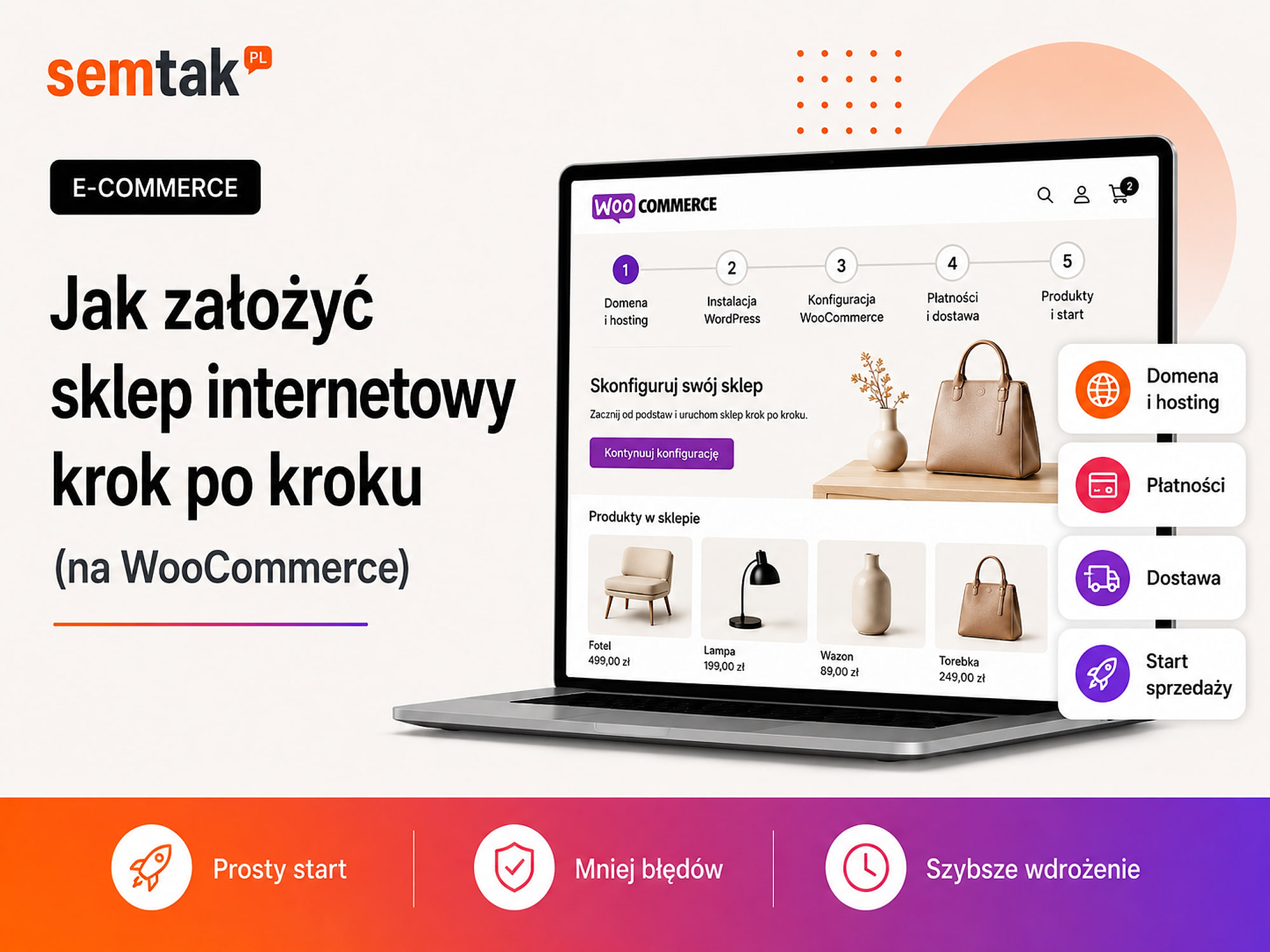
Starting an online store does not begin with choosing the colour of the "Add to basket" button. First you need to decide what you are selling, to whom, at what margin and how you will handle orders.
The WooCommerce installation itself can be done quickly. Preparing the products, categories, payments, deliveries, documents, analytics and tests takes far longer. It is precisely at these stages that most of the mistakes which later block sales are made.
In this guide we will go through the whole process: from the idea and working out whether it is worthwhile, through the domain and the WooCommerce configuration, all the way to a test order and going live.
In short
Start your online store not with the looks but with a decision: what you are selling, to whom, at what margin and how you will handle orders. Then: install WooCommerce, add products and categories, configure payments and deliveries, prepare documents and terms, set up analytics and test the entire purchase path. The installation itself is quick — most of the time and the most mistakes arise around products, payments and deliveries.
In brief (TL;DR)
- Before you install WooCommerce, decide on your sales model, products, margins, deliveries and the way you handle orders.
- Basic WooCommerce is free, but a store generates costs for hosting, implementation, extensions, maintenance and marketing.
- Plan the structure of categories, variants and filters before importing products.
- Payments, taxes and deliveries need to be checked against real-life scenarios, not just switched on in the panel.
- Before publishing, complete a full test order: from the product page through to payment, e-mail, document and status change.
- Once live, the store requires updates, backups, monitoring and a steady source of traffic.
Is WooCommerce a good choice for a first store?
WooCommerce is a good choice if you want to run a store on your own domain, keep control over your data and grow it alongside your business.
WooCommerce is an extension for WordPress — it adds products, a basket, orders, payments, deliveries, customer accounts and basic stock handling to a website. Its biggest advantage is flexibility: you can choose the hosting, the look of the store, the payment provider, the courier companies, the invoicing system, the way you run your warehouse, the marketing tools and the integrations with other systems. That flexibility, however, also means responsibility — someone has to update the store, make backups, watch over security and respond to faults. What is free is the basic WooCommerce engine, not the entire job of launching and running a store. You can read more about what the platform can do in our guide on what WooCommerce is.
When WooCommerce might not be the best choice. A different solution may make more sense if you want to launch very simple sales within a few hours, do not want to deal with hosting or updates, are happy to accept a subscription and the limits of a closed platform, do not need any unusual integrations, or the store is meant to be only a short test of an idea. WooCommerce works best when the store is meant to run for the long term and become a genuine sales channel.
Step 1. Decide what you want to sell and to whom
First describe your sales model, because it determines the range of features, the implementation cost and the way the store is run later on.
Answer a few questions: are you selling to consumers, businesses or both; do you offer physical products, digital products, services or subscriptions; how many products will be in the store at the start; how many variants can a single product have; are the products available off the shelf; will stock levels be managed in WooCommerce; do you already sell on marketplaces such as Allegro; will the store be connected to a warehouse or accounting system; do you plan to sell outside the UK; who will pack the orders and handle returns.
A simple store and a large e-commerce operation call for different approaches. A store with 30 hand-made products can work without an elaborate warehouse. A store with 10,000 products and sales across several channels may need an ERP system — software for managing a company that handles the warehouse, invoices, orders and finances. In a larger store you often need to synchronise prices, stock levels, product data, orders, statuses, documents and shipment numbers. If you do not settle this before implementation, you may end up with a store that looks good but does not fit the way the company actually works.
Map out your order fulfilment process. An example process: the customer places an order → the provider confirms the payment → the store reduces the product's stock → the order goes to the warehouse → an invoice or receipt is created → an employee generates a courier label → the customer receives a shipment number → the status changes to "shipped". Such a map will show what can be done by hand and what is worth connecting or automating.
Step 2. Work out your budget and how profitable selling will be
Count not just the cost of building the store, but also the margin, payments, packing, delivery, advertising and returns.
A common mistake is to calculate: "selling price − purchase price = profit". From that difference, however, you have to subtract, among other things, tax, the payment provider's commission, packaging, the delivery subsidy, the cost of advertising, order handling, returns and complaints, accounting, hosting, licences and technical maintenance. For example: a product costs the customer £29 gross, while buying it from a supplier costs £15 net (plus VAT) — the difference looks good until you add tax, payments, packaging, advertising and part of the shipping cost; the real profit can be far lower than simple subtraction suggests.
| Item | What to count? |
|---|---|
| Product price | Gross and net price |
| Purchase or production | Including transport to the warehouse |
| Packaging | Box, filling, tape and label |
| Delivery | Carrier cost minus the customer's fee |
| Payment | Commission and any fixed fee |
| Marketing | Cost of acquiring a single order |
| Returns | Transport, inspection and re-stocking |
| Handling | The staff time needed to fulfil it |
You do not need to know every figure to the penny straight away. You do, however, need to know the price at which selling stops being worthwhile. We describe the full breakdown of costs in our guide on how much an online store costs.
Step 3. Choose a name and a domain for your store
A good domain should be easy to remember, to write down and to give out over the phone.
The domain is the address of your store, for example yourstore.com. Before registering, check whether the address is available, whether a similar brand already exists, whether the name is hard to spell, whether it contains unnecessary numbers and hyphens, whether it will limit your future range, and whether similar names are available on social media. For example: iphone-cases-london24.com may suit your first range, but it becomes a problem once the store starts selling chargers, headphones and accessories for other devices.
Does the domain have to contain an SEO keyword? No. A clear brand and a good store structure matter more — product keywords can be used in category addresses, e.g. yourstore.com/cosmetics/face-creams/.
Register the domain and accounts in YOUR company's name
The domain should not belong to a freelancer, an agency or an IT-savvy friend. Set up the hosting, the Google account, Google Merchant Center, the advertising accounts, the payment provider, the courier accounts and the licences for paid extensions in your company's name too. The contractor may be given technical access, but the owner of the services should remain the merchant — otherwise, once the cooperation ends, you may lose access to your own store.
Step 4. Choose hosting for WooCommerce
WooCommerce hosting has to handle a dynamic basket, orders, payments and integrations, not just display the home page quickly.
Hosting is the server where the store's files and database are kept. Do not choose it solely on the basis of the number of gigabytes, unlimited transfer, the lowest price for the first year or the slogan "WordPress hosting". Check above all the processor resources, the memory limit, the database performance, the available PHP processes, the type of disks, the automatic backups, the option to create a staging environment, access to logs and the quality of technical support. PHP is the language WordPress and WooCommerce run on — an old or incompatible version can cause problems with plugins and performance. A staging environment is a test copy of the store on which you can check updates and bigger changes without risking the version available to customers. There are more criteria in the article on how to choose WooCommerce hosting.
What to set up together with the hosting. At the start, prepare an SSL certificate and an HTTPS address, automatic backups, an e-mail mailbox on your own domain, a staging environment, availability monitoring and an up-to-date, compatible version of PHP. SSL encrypts the connection between the customer's browser and the store — do not launch payments and logins without a properly working HTTPS.
Configure e-mail sending correctly. Order messages should not rely solely on the server's default function. It is worth configuring SMTP — a way of sending mail through a designated server or an external service, which usually improves reliability and deliverability. Check that messages reach the customer, do not land in spam, have the correct sender, contain the right details and are sent after the appropriate status change.
Step 5. Install WordPress and WooCommerce
First you install WordPress, then you add the official WooCommerce plugin.
Most hosting providers offer an automatic WordPress installer. After installation: log in to the panel → open the "Plugins" section → search for WooCommerce → install the official extension → run the setup wizard. The wizard will help you set the store's address, the type of products, the currency, taxes, payments and deliveries. Do not, however, automatically install every add-on suggested.
Why too many plugins are a problem. Each plugin means another piece of code, additional updates, the possibility of a conflict, extra load on the server and another licence or subscription. Before installing, check who develops the extension, when it was last updated, whether it works with the current WooCommerce, whether it has documentation and whether it duplicates the function of another plugin. Be especially careful with add-ons that change prices, the basket, payments and stock levels.
Step 6. Plan categories, attributes and filters
Prepare the store's structure before importing products, because changing addresses later can make buying harder and damage your SEO.
Categories should match the way customers look for products. An example for a cosmetics store:
Face
├── Face creams
├── Serums
├── Cleansing
└── Exfoliators
Hair
├── Shampoos
├── Conditioners
└── Masks
Body
├── Lotions
├── Scrubs
└── Oils
A category makes sense when it contains an appropriate number of products, answers a specific need, differs from other categories and can be given its own description and address.
| Element | Example | Use |
|---|---|---|
| Category | Face creams | Main group of products |
| Subcategory | Moisturising creams | An important product type |
| Attribute | 50 ml capacity | A product feature |
| Filter | Brand, skin type | Narrowing the list |
| Variant | Colour black, size M | Version chosen at purchase |
If you turn every brand, capacity and feature into a category, the menu will quickly become unreadable. In a larger store, ill-considered filters can also create thousands of URLs that Google should not index. There are more examples in our guide on categories in a WooCommerce store — architecture for SEO.
Step 7. Design the look and the purchase path
The store's design should help customers find a product and place an order, not just look good in a presentation.
The most important views are the home page, the categories, the search results, the product page, the basket, the checkout, the customer account and the contact page. To begin with, check whether the customer easily understands the offer, finds a category, filters products, sees the price and availability, learns the delivery cost, chooses a variant, adds a product to the basket and moves on to payment. Animations and visual effects can be added later.
What a product page should contain. Most often: an unambiguous name, the price, the variants, the stock or availability date, good photos, the benefits and uses, the parameters, the dimensions, delivery information, the returns policy and a clear purchase button. The customer should not have to call simply to find out a basic measurement or what is in the set.
Design with the phone in mind. On a mobile device, check the menu, the filters, the gallery, the variant selection, the purchase button, the address form, the pickup-point selection and the payment. It is not enough to shrink the desktop version — elements have to be comfortable to tap and forms easy to fill in.
Accessibility (a11y) — worth it, and often required
The store should also be usable by people relying on a keyboard, a screen reader or magnification. Take care of readable contrast, a logical heading structure, form labels, alternative descriptions for photos, a visible state for the active element, clear error messages and basket handling without a mouse. Since 28 June 2025, EU accessibility legislation has covered, among other things, part of the consumer-facing e-commerce services; micro-enterprise services are as a rule excluded from these requirements. Accessibility is still worth taking into account, as it makes shopping easier for all customers.
Step 8. Prepare your product data
Well-prepared data reduces the number of manual corrections and problems during the import.
For each product, prepare the name, SKU, price, tax, stock level, category, photos, description, parameters, weight and dimensions, variants, brand, manufacturer and the EAN or GTIN code (if there is one). The SKU is an internal, unique product code used in the warehouse and in integrations. EAN and GTIN are international product identifiers, most often in the form of a barcode — they may be required by marketplaces and advertising systems.
Do not copy the manufacturer's description unchanged. The same text may appear in dozens of stores — it usually lists the parameters but does not answer the customer's most important questions. A good description explains who the product is for, what problem it solves, how it differs from similar models, what its limitations are, what is included in the set and how to use or care for it. Do not add properties and certificates that the documentation does not confirm.
Prepare your photos for the web. Before uploading, set reasonable dimensions, compress the files, keep similar proportions, give them readable names and prepare alternative descriptions. A photo weighing 8 MB will still weigh the page down, even if you display it as a small thumbnail.
Import or add manually? With a dozen or so products, adding them by hand may be quicker; with a larger catalogue, prepare a CSV file (a simple tabular file that can be opened in Excel). First import a few products and check the categories, variants, photos, prices, stock levels and special characters — only then run the full import.
Step 9. Set prices, taxes and stock
The configuration of taxes and prices has to match the way the company accounts for things, which is why it is worth agreeing with your accountant.
WooCommerce lets you, among other things, enter net or gross prices, assign tax classes, calculate tax by location, manage stock levels and block the sale of unavailable products. The most important thing is consistency — if the ERP stores net prices while the store expects gross amounts, an incorrect mapping can lead to selling at the wrong price.
Check various cases. Test an ordinary product, a variant, a promotional product, a percentage coupon, a fixed-amount coupon, free delivery, several VAT rates and an invoice for a business. The price should be consistent on the product page, in the basket, at payment, in the order and on the sales document.
Promotions and the lowest price from the last 30 days (Omnibus)
If you advertise a reduction, you have to show, next to the current price, the lowest price in force during the 30 days before the promotion began. The mechanism also has to work when prices are changed by an import, an ERP, a promotion schedule or an external integration — otherwise an automatically generated reduction may break the rules without the merchant's knowledge.
Choose a master system for stock. Decide where the correct stock is kept, when WooCommerce reduces inventory, what happens after a cancellation, whether buying below zero is allowed, how reservations work and how other channels are synchronised. If you sell in the store, on a marketplace and in a physical shop, updating stock by hand can lead to selling a product you no longer have.
Step 10. Connect online payments
In a UK store it is worth offering at least cards, fast bank transfers and a digital wallet such as Apple Pay or Google Pay.
Popular providers include Stripe, PayPal, Worldpay and, on the Polish market, Przelewy24, PayU and Tpay. Compare the available payment methods, the commissions, the fixed fees, the payout time, the handling of refunds, the option of recurring payments, the quality of the integration and the technical support. Do not choose solely on the lowest commission.
Returning to the "Thank you" page is NOT a payment confirmation
You have to test: a successful payment, a declined payment, an interrupted process, a retried payment, an order status change and a full and partial refund. The customer returning to the "Thank you" page does not always mean that the provider has successfully confirmed the transaction — the status should change on the basis of the communication (a webhook) between the provider and the store, not on the basis of the browser redirect alone. There are details in our guide on payments in WooCommerce — Przelewy24, PayU and Tpay.
Step 11. Configure deliveries
The delivery methods have to match the products' dimensions, the way you pack and your agreements with carriers.
The most commonly used options are parcel lockers, courier, pickup points, in-person collection, your own transport, pallet shipping and international parcels. WooCommerce uses shipping zones — you can create separate zones for your home country, selected postcodes, the EU and other countries, and assign the available methods to each.
Example rules: parcel locker £2.99; courier £3.59; free delivery from £49; in-person collection £0; oversized product — a separate quote.
Set a profitable free-delivery threshold. If the average basket is £39, a threshold of £49 or £59 may encourage customers to add another product; if you set free shipping from £19, you may end up funding most deliveries without any increase in basket value.
Enter correct dimensions and weight. A product's dimension is not always the dimension of the finished parcel — take into account the packaging, the protection, the combining of products, the carrier's size limits and shipping classes. There is a full overview in our guide on shipping in WooCommerce — InPost, DPD and parcel lockers.
Step 12. Prepare the terms and the documents
The documents have to match the real process of selling, delivery, payment and returns.
Most often you will need: the store's terms and conditions, a privacy policy, cookie information, the delivery and payment rules, a complaints procedure, information on the right of withdrawal, a model withdrawal form and the seller's full details. Do not copy a random set of terms from another store — if the document mentions delivery within three days while the product is made to order over four weeks, the customer receives incorrect information.
Returning online purchases. Under a standard contract concluded online, the consumer usually has 14 days to withdraw from the contract. There are exceptions, among others for certain products made to an individual specification. Do not apply the exception simply because a product was made after the order was placed — first check whether it really is individualised in accordance with the regulations.
Personal data. A store may process the name, address, e-mail, phone number, company details, order history, IP address and analytics data. Establish why you collect the data, where it is stored, who has access to it, which parties it is passed on to and how long you keep it. Marketing consent should not be a mandatory condition for placing an ordinary order.
GPSR and product safety — check your category
Since 13 December 2024, the EU GPSR regulation on general product safety has applied. Depending on the product, an online listing may require, among other things, the manufacturer's details, the details of the responsible person in the EU, product marking, a photo allowing identification, warnings and information on safe use. Additional requirements may apply, among others, to cosmetics, food, electronics, toys, supplements and medical products. The technical configuration of the store does not replace legal or tax advice.
Step 13. Prepare the SEO basics
SEO is worth planning before launch, because rebuilding categories and addresses later is riskier.
At the start, take care of logical categories, readable URLs, unique SEO titles, H1 headings, category descriptions, product descriptions, internal linking, an XML sitemap, product structured data and correct indexing. Google should usually be served: the home page, the important categories, valuable subcategories, available products and useful guides. Most often the following should not be indexed: the basket, the checkout, the customer account, the internal search results, technical system pages and most random filter combinations. Do not, however, block everything in robots.txt without analysis — a crawl block, noindex and the canonical address serve different functions. If the store has a lot of products or filters, an online store SEO audit is worth carrying out before publishing. We describe the full order of work in our guide on WooCommerce store SEO — where to start.
Step 14. Connect analytics
Analytics should show not only visits, but also where orders come from and where customers drop off.
To start with, it is worth configuring Google Analytics 4, Google Search Console, Google Tag Manager, Google Merchant Center, Google Ads conversions and a consent management mechanism. The most important e-commerce events are a product view, adding to the basket, beginning checkout, choosing delivery, choosing payment, the purchase and a return.
Check that a purchase is not being measured twice
After your test order, check that the purchase was recorded only once, that it has the correct value and currency, that it contains the products, that the order number is not duplicated and that the user's consents are respected. Double-counting a purchase makes ads look more profitable than they really are — and leads to poor budget decisions.
Step 15. Secure the store and configure backups
The basis of security is updates, restricted access, working copies and the rapid detection of problems.
Before publishing, remove unused themes and plugins, set strong passwords, enable two-factor login, limit the number of administrators, turn on automatic backups, store a copy off the main server, run monitoring, secure the forms, check the SSL and plan the updates. A backup is only valuable if it can be restored — it is worth testing the restore process on staging. There is more in our guide on WooCommerce store security.
Step 16. Run pre-launch tests
The store is ready only when a full order works on a computer and on a phone. Do not limit yourself to one product and one correct payment.
Scenario 1: an ordinary order. Check going from a category to a product, choosing a variant, adding to the basket, the delivery, the payment, the creation of the order, the e-mails, the status change and the sales document.
Scenario 2: a discount. Test a correct code, an incorrect code, an expired code, the minimum basket value, an excluded product and combining it with free delivery.
Scenario 3: a failed payment. Check the situation where the customer closes the payment window, returns to the store, pays after a few minutes or tries again. The store should not create duplicates or wrongly mark an unpaid order as fulfilled.
Scenario 4: out of stock. Check the last item, a missing variant, an order cancellation and a stock change in an external system.
| Area | What to confirm? |
|---|---|
| Products | Prices, variants, photos and stock |
| Basket | Quantities, coupons and the summary |
| Payments | Success, error and refund |
| Deliveries | Pickup points, courier and free threshold |
| E-mails | Messages for the customer and staff |
| Mobile | Menu, filters, page and checkout |
| Analytics | Basket, checkout and purchase |
| SEO | Sitemap, addresses and indexing |
| Security | Backup, SSL and accounts |
| Legal | Terms, privacy and returns |
Step 17. Launch the store and acquire customers
Publishing does not provide traffic — you need a separate plan for acquiring customers.
The possible channels are SEO, Google Shopping, Performance Max, Google Ads text ads, Meta Ads, marketplaces, a newsletter, social media, collaborations with creators and B2B sales. Performance Max is an automatic Google Ads campaign type that can show ads across several Google services based on the data, assets and goals you give the system. Do not launch every channel at once without correct measurement — at the start, pick one or two.
Google Shopping. To advertise products you need Google Merchant Center and a product feed — a file or automatic data stream that passes Google the name, price, availability, photo, brand, GTIN, delivery cost and product address. The price and availability in the ad have to match the store. A well-configured Google Ads campaign can help with running sales.
SEO. Online store SEO lets you build visibility for categories, products and guides. At the start it is worth focusing on the most important categories, products with a good margin, customer questions, correct indexing and content that supports the choice.
What can you check yourself?
The best test of a finished store is a real order placed the way a customer would place it.
- Place a real order on your phone.
- Check a successful and an interrupted payment.
- Carry out a refund of a small transaction.
- Send the contact form.
- Test a discount code.
- Choose every delivery method.
- Check the stock-level change.
- Open the store in private mode.
- Verify the date of the last backup.
- Check the company details in the footer and the documents.
- Compare the terms with the actual configuration.
- Check that the purchase appeared correctly in analytics.
The most common mistakes when starting a store
The most problems are caused by: starting from the looks, a lack of ready data, random plugins and no person responsible after publication.
Starting from the looks. A home page is created before the variants, filters, warehouse and delivery have been settled — and the design then has to be rebuilt.
A lack of ready data. The store is technically prepared, but the products' prices, descriptions, photos and dimensions are missing.
Installing random plugins. One add-on after another solves individual problems, but they begin to change the same elements of the basket and orders.
Several sources of the same information. The price is set at the same time in WooCommerce, the ERP, the supplier's file and Base (the system that used to be known as BaseLinker). For each type of data, choose a single master source.
Testing only as an administrator. A logged-in administrator may see a different version of the page and bypass some of the caching mechanisms — test as an ordinary customer too.
Starting without analytics. Orders come in, but it is not clear which campaign and which traffic source generated them.
No person responsible after publication. Nobody watches over updates, backups, licences, payments and the expiring certificate.
When is it worth hiring a specialist?
A specialist's help is needed when the store has to integrate several systems, handle a large catalogue or be an important sales channel from the outset.
Consider an external implementation if you do not know how to plan the structure, you have hundreds or thousands of products, you need imports, the store has to work with an ERP, you sell across several channels, you need custom features, you cannot test payments, you are planning Google Shopping, you are migrating an existing store or you have no one responsible for maintenance. When commissioning the work, agree the exact scope, the number of products, responsibility for the content, the list of integrations, the way of testing, the owner of the accounts and licences, the training and the scope of support after publication. A good contractor should also point out which features are not worth implementing at the start.
Frequently asked questions
Can you start an online store on your own?
Yes. A simple WooCommerce store can be launched without programming. The biggest difficulty lies in correctly configuring payments, deliveries, taxes, security, analytics and SEO.
How much does it cost to start a store on WooCommerce?
The cost depends on the number of products, the look, the integrations and the features. Beyond the build, you need to take into account the domain, hosting, paid extensions, maintenance and marketing.
Is WooCommerce free?
The basic WooCommerce plugin is free. The hosting, the theme, the extensions, the integrations, the build of the store and the ongoing care may be paid for.
How long does it take to set up a store?
A simple store with ready materials can be prepared relatively quickly. A project with a large catalogue, a custom look and integrations requires several stages of implementation.
Do I need a registered business?
It depends on the scale and the way you sell. Under certain conditions, unregistered activity is possible, but it still comes with obligations towards customers, taxes and limits.
Which payments should I add to the store?
In a UK store it is worth providing cards, fast bank transfers and a digital wallet. In addition, you can offer cash on delivery, a traditional transfer, instalments or deferred payment.
Can a WooCommerce store work with a marketplace and a warehouse?
Yes. WooCommerce can be connected to marketplaces such as Allegro or Amazon, to Base — formerly BaseLinker — an ERP system, accounting, couriers and a warehouse. The scope of the integration needs to be settled before implementation.
Does the store need looking after once it is live?
Yes. WordPress, WooCommerce, the theme and the plugins require updates. Backups, monitoring, security checks and testing of the most important features are also needed.
Launch the store in stages, not all at once
Starting a store on WooCommerce is not just installing WordPress and adding products. Before launch you have to prepare the sales model, the budget and margins, the domain and hosting, the category structure, the product data, the prices and taxes, the payments, the deliveries, the documents, the SEO, the analytics, the security and the tests.
The safest approach is to launch the store in stages — first a version that correctly handles the basic sales process, then the automations, integrations and additional features. If you want to launch a store without assembling it from random extensions, we can prepare the structure, the design, WooCommerce, the payments, the deliveries, the sales measurement and the integrations you need:
- WooCommerce store development — an implementation tailored to the way you actually sell.
- How much an online store costs and the complete WooCommerce guide.
- WooCommerce store SEO — where to start and a Google Ads campaign — when you want to acquire traffic straight away.