WooCommerce Hosting — How to Choose So Your Store Is Fast

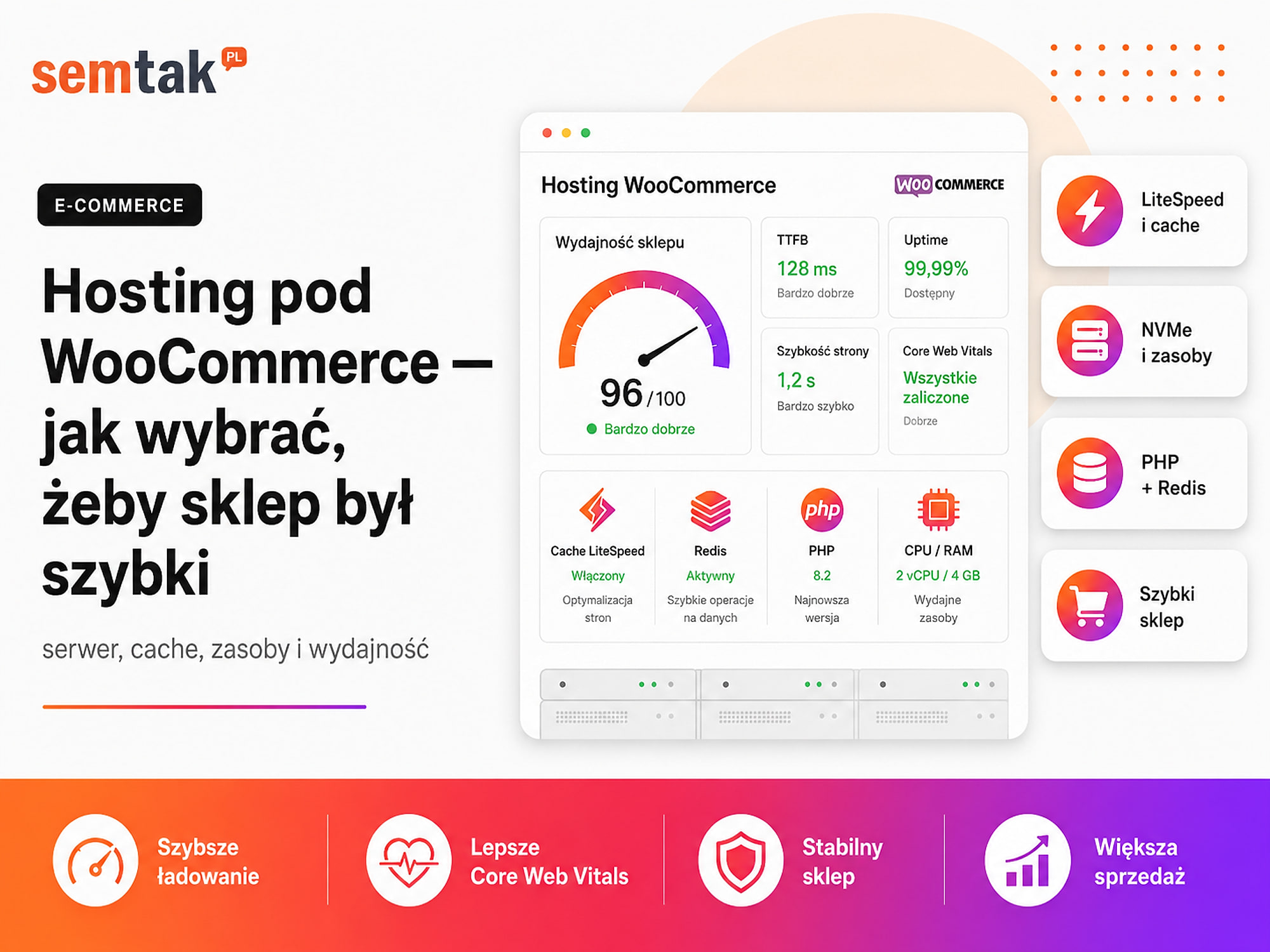
A WooCommerce store can run slowly even when the hosting offer promises "unlimited transfer", fast disks and plenty of space. The problem is that an online store needs more than an ordinary company website.
WooCommerce continuously handles the cart, stock levels, customer accounts, payments, shipping, coupons, integrations and orders. A large part of these operations simply cannot be stored in cache. The server has to actually process them.
In this guide we show which hosting parameters matter, when good shared hosting is enough, when it is worth moving to a VPS and what to ask the provider before buying the service. A general hosting guide: which hosting to choose.
In short: good WooCommerce hosting has up-to-date PHP, an efficient database, clearly defined CPU and PHP process limits, and the cart, checkout and customer account correctly excluded from cache. A small store may be fine with good shared or managed hosting. A growing e-commerce business with campaigns, imports and integrations more often needs a VPS with technical support.
In a nutshell (TL;DR)
- WooCommerce hosting should have up-to-date PHP, an efficient database, an adequate memory limit and clearly defined processor resources.
- Don't choose an offer based only on disk space and "unlimited transfer".
- Cache speeds up a store, but the cart, checkout and customer account must be correctly excluded from it.
- Redis, a system cron, a fast NVMe disk and monitoring become more important as the store grows.
- Good shared hosting may be enough for a small store. A growing e-commerce business more often needs managed hosting or a VPS.
- Changing the server will not fix a heavy theme, badly written plugins, huge images or a messy database.
Why does WooCommerce need better hosting than an ordinary website?
An ordinary company website shows similar content to everyone, so it can be fully cached. In a store, many operations are individual and the server has to actually process them.
In a store, every customer can have a different cart, different recently viewed products, individual coupons, different prices after logging in, separate delivery details, their own order history and various payment or shipping methods. On top of that there are background operations: updating stock levels, importing products, syncing with BaseLinker or an ERP, sending messages, generating documents and handling feedback from the payment system.
A simple example: a newsletter campaign. Let's say you send a newsletter to a few thousand customers. Some recipients land on a category page — hosting can serve them a ready page from cache, so the load is small. The problem starts later: customers move to products, add them to the cart, choose a parcel locker, enter a discount code and proceed to payment. Each of these operations requires running PHP code and communicating with the database. If hosting has a low process limit or an overloaded processor, the store may take a long time to update the cart, freeze when choosing delivery, return 502 or 504 errors, fail to redirect the customer to payment, delay the order status update or send a message with a large delay.
That is why WooCommerce hosting should be assessed under conditions resembling real shopping, not just by checking the home page.
What requirements should WooCommerce hosting meet?
As of the article's update date (5 June 2026), the official WooCommerce recommendations are as follows:
| Element | Recommended starting point |
|---|---|
| WordPress | version 6.9 or newer |
| PHP | version 8.3 or newer, tested up to PHP 8.4 |
| Database | MySQL 8.0+ or MariaDB 10.6+ |
| WordPress memory | at least 256 MB |
| Certificate | HTTPS support |
| Web server | correctly configured Nginx, Apache, LiteSpeed or OpenLiteSpeed |
Software requirements change with each new version of WordPress and WooCommerce. Before migrating or changing PHP, check the current WooCommerce documentation and the compatibility of the plugins you use. However, simply meeting the technical requirements does not mean the store will be fast — a server may support PHP 8.3 while at the same time allocating very little processor time to the account.
Which hosting parameters should you pay attention to?
Processor and PHP process limits. The processor is responsible for running the store's code. In shared hosting offers you may come across terms such as CPU, vCPU, PHP processes, PHP workers, Entry Processes, the limit of simultaneous processes or processor time. A PHP worker can be simplified to a "worker" that handles a single dynamic request — when all workers are busy, further requests wait in a queue and the customer may be staring at a spinning loading icon after clicking "Proceed to checkout". There are two key questions to ask hosting: how many simultaneous PHP processes can run, and what happens when the CPU or process limit is exceeded. If the current hosting regularly hits its limits, the solution may be moving to better-matched WordPress and WooCommerce servers — but first it is worth confirming on the charts and in the logs that the problem really stems from server resources.
RAM and the PHP memory limit. RAM is used when running code, handling database queries, importing products, generating files and running plugins. You need to distinguish between the RAM of the whole server, the memory allocated to the account, the memory limit of a single PHP process and the memory limit available to WordPress. WooCommerce recommends a WordPress memory limit of at least 256 MB; an extensive store may need more. Too low a limit can cause the Allowed memory size exhausted message, a white screen, an interrupted import or an error while saving a product. However, you should not keep increasing memory endlessly to mask a malfunctioning plugin — if a simple store uses a great deal of RAM, you need to check what exactly is loading the system.
Database performance. WooCommerce uses the database intensively — it holds products and variants, orders, settings, user accounts, coupons, session data, stock levels, task queues and plugin data. A fast disk will not fully help if the database is overloaded, has very little memory or shares resources with hundreds of other sites. When choosing hosting, check whether you can view slow queries and whether the database has separate, clearly defined limits. A large store may run slowly even on a powerful server if the database contains millions of unnecessary records or one plugin runs a heavy query on every visit to a product page.
NVMe disk. The disk stores WordPress files, images, logs, cache and often the database too. NVMe is currently a sensible choice — it provides faster read and write than HDD and typical SATA SSDs. The buzzword "NVMe" alone, however, does not guarantee a fast store; a provider may use fast disks but strongly limit input and output operations. In the specification you will encounter I/O (the read/write speed limit) and IOPS (the number of disk operations over time). For a store owner, more important than the disk name is access to resource-usage charts and information on whether the account regularly hits its limits.
Page cache. Cache saves a ready version of a subpage, so the server does not have to launch the whole of WordPress every time. A well-configured cache relieves the store especially on the home page, categories, products, guides and information pages.
Do not fully cache pages with customer data
The cart, checkout, customer account, order confirmation pages, sessions of logged-in users, selected AJAX requests and cart cookies must be excluded from cache. A badly configured cache may show the customer an outdated cart, the wrong price or data intended for another user. That is why installing a cache plugin should not end with simply turning on all available options.
We describe the detailed configuration of cache, scripts and images in the guide how to speed up a WooCommerce store. In this article we focus on whether hosting provides the right capabilities and resources.
Redis and object cache. Page cache stores a ready page; object cache works differently — it saves the results of frequently repeated operations and database queries. In WordPress, Redis is most often used for this. Redis can help especially when a store has many products and variants, uses extensive filters, serves logged-in customers, has individual B2B prices, generates a lot of database queries or has a slow admin panel. Access to Redis alone is not enough — it must be correctly launched and connected to WordPress as a persistent object cache. It is not worth choosing hosting just because it has Redis in its feature table.
OPcache. OPcache stores compiled PHP code in memory, so the server does not have to repeatedly parse the same files on every request. Most good hosts have OPcache enabled by default, but it is worth confirming — especially when the store runs on an older or non-standard environment.
A system cron instead of running only on a user visit. WordPress has a WP-Cron mechanism that runs scheduled tasks during visits to the site. On a small website it is usually enough; in a store it can be less predictable. WooCommerce scheduled tasks are responsible for, among other things, processing background operations, selected messages, renewing subscriptions, synchronisations, data updates, imports and exports, and plugin queues. Good hosting should allow you to set up a system cron that runs tasks regularly, regardless of traffic. Cron problems show up as unsent messages, delayed stock synchronisation, an un-renewed subscription, a growing task queue or outdated data in integrations. You can check the queue status in WooCommerce → Status → Scheduled Actions.
Backups and the ability to restore the store. The statement "we make backups" is too vague. Before buying, find out how often the files and database are backed up, how many days they are kept, where they are physically located, whether they are off the main server, whether you can start the restore yourself, whether it is charged extra and whether the provider tests the backups for correctness. In a store, the database changes far more often than on a company website — one backup per day may mean the loss of many hours of orders, payments and stock changes. A good solution is an off-site backup (outside the main environment), so that a server failure does not delete both the store and its only copy at once. More in the guide on WooCommerce store security.
Staging, that is a safe test copy. Staging is a copy of the store on which you can test WooCommerce updates, new PHP versions, plugins, theme changes, cache configuration, integrations and fixes. Introducing every change directly on production is risky — an update may look fine on the home page but break payment, parcel-locker selection or tax calculation. Check whether the hosting lets you create staging with one click, protects the copy from indexing, allows an independent PHP version, lets you move selected changes to production and does not overwrite new orders during synchronisation. That last point is especially important — copying the whole test database onto a live store can delete orders placed after the staging was created.
Monitoring and logs. Hosting should provide more than the message "the site is available". Useful monitoring includes CPU and RAM usage, the number of PHP processes, database load, disk occupancy, 500/502/503/504 errors, server response time, the SSL expiry date and PHP and web-server logs. This makes it possible to tell server overload apart from a plugin error. Example: a store slows down every day around 2 a.m. Without logs you might suspect the hosting, the database or bots — but the charts may show that a heavy backup, a product import and feed generation all start at exactly that time.
Shared hosting, managed hosting or a VPS?
Not every store needs its own server. What matters is that the environment is matched to the real load.
| Solution | For whom | Advantages | Limitations |
|---|---|---|---|
| Shared hosting | small store, low traffic, simple integrations | low cost, simple panel, administration on the provider's side | shared resources, process limits, less control |
| Managed WordPress/WooCommerce hosting | small or medium store without its own administrator | support, automatic backups, staging, cache | higher price, limitations on some configuration |
| Managed VPS | growing store, campaigns, integrations, large catalogue | more control, separate resources, Redis and cron | requires administration and monitoring |
| Unmanaged VPS | a company with an administrator or technical partner | full control over the environment | the client is responsible for updates, security, backups and failures |
| Dedicated server / extensive infrastructure | large e-commerce, high load, B2B and critical integrations | large resources and broad configuration options | higher cost and technical responsibility |
When is shared hosting enough? When the store is just starting out, has a small catalogue, does not use heavy integrations, does not perform large imports, traffic is relatively even, the hosting clearly states its limits and cache, cron, backup and up-to-date PHP are available. "Shared" does not automatically have to mean "bad" — the problem starts when very many accounts compete for the same resources and the owner has no way to check the limits.
When should you choose managed hosting? When the company does not want to handle the server itself. The price may include environment updates, backups, staging, monitoring, WordPress support, cache configuration and protection against basic attacks. Check the scope of responsibility, though — some providers manage only the server, but do not analyse WooCommerce errors, plugins or the order process.
When is it worth moving to a VPS? When the store regularly hits hosting limits, the panel runs slowly, campaigns cause traffic spikes, imports block the site, many integrations are running, you need Redis and a system cron, or you want more control over PHP and the database. A VPS does not speed up a store automatically — a badly configured one can run worse and be less secure than good managed hosting. When you buy an independent VPS, you most often get an empty server: someone still has to install the system, configure the web server, launch PHP and the database, deploy SSL, set up a firewall, configure backups, update the environment, monitor the load and respond to failures. That is why, in the absence of an administrator, a better choice is a managed VPS or a VPS configuration service for WooCommerce.
How to match hosting to the type of store?
A small store at the start of its activity (a few dozen to a few hundred products, standard payments, one courier integration, low traffic, no large imports and no individual prices) — good shared hosting or simple managed hosting may be enough. More important than a large VPS will be the correct configuration of cache, images, PHP, backups, monitoring and updates.
A growing store with advertising campaigns (regular traffic from Google/Meta Ads, a few thousand products, a warehouse integration, frequent price updates, newsletters, several people in the panel) — it is worth looking for strong managed hosting or a VPS with administrative support. Clearly defined resources, a larger number of PHP processes, Redis, a system cron, an efficient database, staging, frequent database backups and error monitoring will be especially important.
A large catalogue, B2B or extensive integrations (tens of thousands of products/variants, individual price lists, sales-rep accounts, ERP integration, automatic imports, multiple warehouses, document generation, recurring background tasks) — you need to analyse not only the number of visits, but also the load generated by internal processes. Even with low traffic, a heavy import can use more resources than many customers. Most often, what is needed then is a VPS environment, a dedicated server or infrastructure prepared individually.
A simple hosting-selection scheme
| Situation | A reasonable starting point |
|---|---|
| Small store, small catalogue, no heavy integrations | good shared hosting |
| The store is growing, but the company has no administrator | managed WooCommerce hosting |
| Campaigns cause traffic spikes, imports and integrations are running | managed VPS |
| You need your own Redis, PHP, database and cron configuration | VPS with administrative support |
| The store is a critical system, and downtime means big losses | dedicated environment or extensive infrastructure |
Do not move to a VPS solely because the store has many products. Traffic, the number of variants, the way filtering works, integrations and background tasks also matter.
Is LiteSpeed better than Nginx?
There is no single answer for every store.
LiteSpeed or OpenLiteSpeed combined with a correctly configured LiteSpeed Cache can be an efficient solution for WooCommerce. Nginx can also run very fast, especially when the server is well configured and has a proper cache mechanism. In practice, the available resources, the PHP and database configuration, the cache rules, the WooCommerce exclusions, Redis, monitoring and the quality of administration matter more than the technology name itself. A well-configured Nginx will be better than a badly configured LiteSpeed, and vice versa.
Does a CDN replace a fast server?
No.
A CDN can store copies of static resources (images, CSS, JavaScript, fonts, selected cached pages) and thereby relieve the server and speed up delivery of files to customers in different locations. A CDN will not, however, fix a slow database, an overloaded PHP, a badly written theme, a heavy plugin, cart errors, delayed cron tasks or payment problems. The cart and checkout still require a properly working origin server. We discuss CDN configuration and other speed-related elements in more detail in the guide how to speed up WooCommerce.
The most common mistakes when choosing WooCommerce hosting
Choosing based on disk capacity. A store may take up a few gigabytes while at the same time needing a lot of computing power. A package with 500 GB of space need not be faster than one with 20 GB — capacity tells you how much data you can store, not how quickly the server will process it.
Believing in "unlimited resources". Unlimited transfer does not mean unlimited processor. Hosting may allow you to transfer a lot of data, but limit CPU, RAM, PHP processes, database queries, disk operations and script run time — and it is precisely these limits that most often affect WooCommerce.
Test more than the home page
The home page may be fully cached and load fast even on weak hosting. Also check the product, the category, the search, filtering, adding to cart, changing the number of products, choosing delivery, the checkout, the customer account and the admin panel. Testing the home page alone tells you nothing about the store's real performance.
Turning on all cache options. More is not always better. Using several cache plugins, server cache, additional minification and CDN cache at the same time can cause conflicts: an outdated cart, JavaScript errors, no delivery choice, disappearing variants, coupon problems, wrong prices.
No backup restore test. A backup that has never been restored gives only an illusion of security. A restore test shows whether the copy contains the files and database, whether it is not corrupted, how long the restore takes, whether the store starts after restoration and who is responsible for the whole process.
Buying a VPS without administration. A VPS on its own does not solve the problem — it has to be updated, secured and monitored. If no one is responsible for the server, you may have more resources but also a greater risk of failure or a break-in.
Hosting will not fix the whole of PageSpeed
Changing hosting can shorten the server response time, but it will not automatically shrink images of several megabytes each, the number of scripts, heavy theme code, external widgets, the number of fonts or unnecessary plugins. Before migrating, check whether the problem really lies on the infrastructure side — the guide how to speed up a WooCommerce store helps with that.
How to test hosting before moving the store?
This section is about comparing the current and the new environment before migration — checking whether the new place will really be better.
1. Measure the current store. Record a reference point: server response time, the loading time of a category and a product, the speed of the cart and checkout, the speed of the panel, CPU and memory usage, and the number of server errors. Without a measurement before migration it is hard to judge whether the change brought an improvement.
2. Move a copy to a test environment. The copy should include the WordPress files, the database, the media directory, the configuration, plugins, the theme and the cron tasks needed. Protect the test environment from indexing and from accidentally placing real orders.
3. Run a test order. On the test environment check: entering a category, filtering, searching, choosing a variant, adding to cart, applying a coupon, choosing delivery, going through checkout, a payment test and an order status change.
4. Check the integrations. Verify the payment gateway, webhooks, the courier system, parcel lockers, the ERP, BaseLinker, invoices, transactional messages, the product feed and the warehouse system. A fast site is not enough if the status of a paid order does not come back from the payment gateway.
5. Check background tasks. Make sure the queue of scheduled actions is not growing and that tasks related to imports, payments and synchronisations complete correctly.
6. Perform a controlled load test. The test should cover not only the static home page, but also selected dynamic operations. Do not run aggressive tests on a live store without the consent of the administrator or hosting — a badly prepared test can itself cause the site to become unavailable.
7. Prepare a migration rollback plan. Before changing DNS, agree when the last backup will be made, how to transfer orders placed during migration, who changes DNS, who tests payments, who monitors errors and how to return to the old server in case of a serious problem. A migration without a contingency plan is an unnecessary risk.
What to ask hosting before buying?
You can copy the message below and send it to the technical department.
A ready message to hosting (copy and send)
Hello, I am planning to launch or move a WooCommerce store. Please let me know:
- Which versions of PHP, MySQL and MariaDB are available?
- What is the PHP and WordPress memory limit?
- What CPU limits apply to the account?
- How many simultaneous PHP processes can run?
- Do you provide Redis and a persistent object cache?
- Can I set up a system cron?
- Is staging available?
- How often are files and the database backed up?
- How long are backups kept?
- Is the backup located off the main server?
- Can I restore a backup myself?
- Are PHP logs and resource-usage charts available?
- Do you help diagnose 502, 503 and 504 errors?
- Does the hosting have a cache mechanism prepared for WooCommerce?
- Are the cart, checkout and customer account automatically excluded from full cache?
- Can a test copy of the store be launched before buying?
The quality of support is also part of the service. If it is hard to get concrete information before buying, it may be similar during a failure.
What can you check yourself?
This section is for diagnosing the current store — you do not have to move the site or buy a new server yet.
1. Check the WooCommerce system report. In WooCommerce → Status you will find the PHP version, the memory limit, the database version, server information, active plugins, template errors and environment settings. A red warning does not always mean a failure, but it should be checked.
2. Open the "Site Health" tool. In Tools → Site Health, WordPress may point out outdated PHP, a cron problem, the lack of a persistent object cache, communication errors or HTTPS problems.
3. Check the WooCommerce task queue. Check whether the scheduled actions show a large number of failed, overdue or constantly pending tasks. If the errors concern one plugin, the problem need not stem from hosting; if various tasks stop at the same time, check the cron, PHP and server load.
4. Test the store without logging in. Open the store in an incognito window and go through the full buying path: product, variants, cart, coupon, shipping method, checkout, a test payment, a confirmation message. The admin panel may work correctly while customers receive a version of the page from an incorrect cache.
5. Check resource usage in the hosting panel. Look for charts of CPU, RAM, Entry Processes, I/O, IOPS, the number of processes and HTTP errors. If a chart regularly reaches its maximum value, the store is probably hitting the package limits.
6. Ask hosting for specific data. Support should be able to tell you whether, during the reported slowdowns, the account exceeded its limits. Simply saying "everything works on our side" is not a diagnosis.
When is it worth hiring a specialist?
Technical help is justified when:
- you don't know whether the problem is caused by hosting, the theme or a plugin,
- the store runs fast only when there is no traffic,
- the cart or checkout periodically freezes,
- 502, 503 or 504 errors occur,
- WooCommerce tasks regularly end with an error,
- integrations stop syncing data,
- the migration involves a live store with orders,
- you need a VPS but have no administrator,
- backups have never been tested,
- the admin panel runs very slowly.
A specialist should first find the bottleneck, and only then propose a server change. Sometimes the solution is stronger hosting; other times you need to improve database queries, remove a problematic plugin, configure a cron or tidy up the cache. If the problem also concerns visibility, indexing and Core Web Vitals, it is worth combining the server analysis with technical SEO for the store. With steady sales you can also consider technical maintenance of WordPress and WooCommerce, which covers updates, monitoring, backups and responding to errors.
Frequently asked questions
What hosting is best for WooCommerce?
The best hosting is one matched to the number of products, traffic, integrations and background operations. A small store can run well on managed hosting. A growing store more often needs a VPS with administration.
Is ordinary WordPress hosting enough for WooCommerce?
It may be enough for a small store if it has the right limits on CPU, PHP processes, memory, cache and backups. The cheapest package intended for a simple blog can quickly become a constraint.
How much RAM does a WooCommerce store need?
It cannot be determined solely from the number of products. Plugins, the number of users, integrations, imports and traffic also matter. Resources should be chosen based on measurements, not a single universal value.
Will a VPS always speed up WooCommerce?
No. A VPS gives more control and usually more predictable resources, but it requires correct configuration. A badly managed VPS can run worse than good shared hosting.
Is Redis needed in every store?
Not in every one. In a small store the difference may be slight. Redis becomes more useful with a large database, many logged-in customers, extensive filters, integrations and a slow admin panel.
Is LiteSpeed necessary?
No. WooCommerce can run fast on LiteSpeed, OpenLiteSpeed, Nginx or Apache. The whole configuration matters more: PHP, the database, cache, resources and monitoring.
Will a CDN speed up the cart and checkout?
A CDN can speed up images and other static files, but it will not replace efficient PHP and a database. The dynamic cart and checkout still depend on the store's server.
How to check whether hosting is slowing down the store?
Compare the server response time, check CPU and PHP process usage, analyse the logs and run a copy of the store on another environment. Without a comparative test it is hard to clearly identify the cause.
Hosting should not limit sales
A good server will not fix all WooCommerce problems, but a weak server can waste the work put into SEO, advertising campaigns and the store's offer. If you want to check whether your store's problem really lies on the hosting side, we can analyse its performance, logs, database, cache and resource usage:
- WordPress and WooCommerce servers — an environment selected and configured for the store.
- VPS configuration — when you need your own resources but have no administrator.
- How to speed up a WooCommerce store — when the problem does not lie in the hosting itself.
- WordPress and WooCommerce technical maintenance — updates, monitoring and backups.