
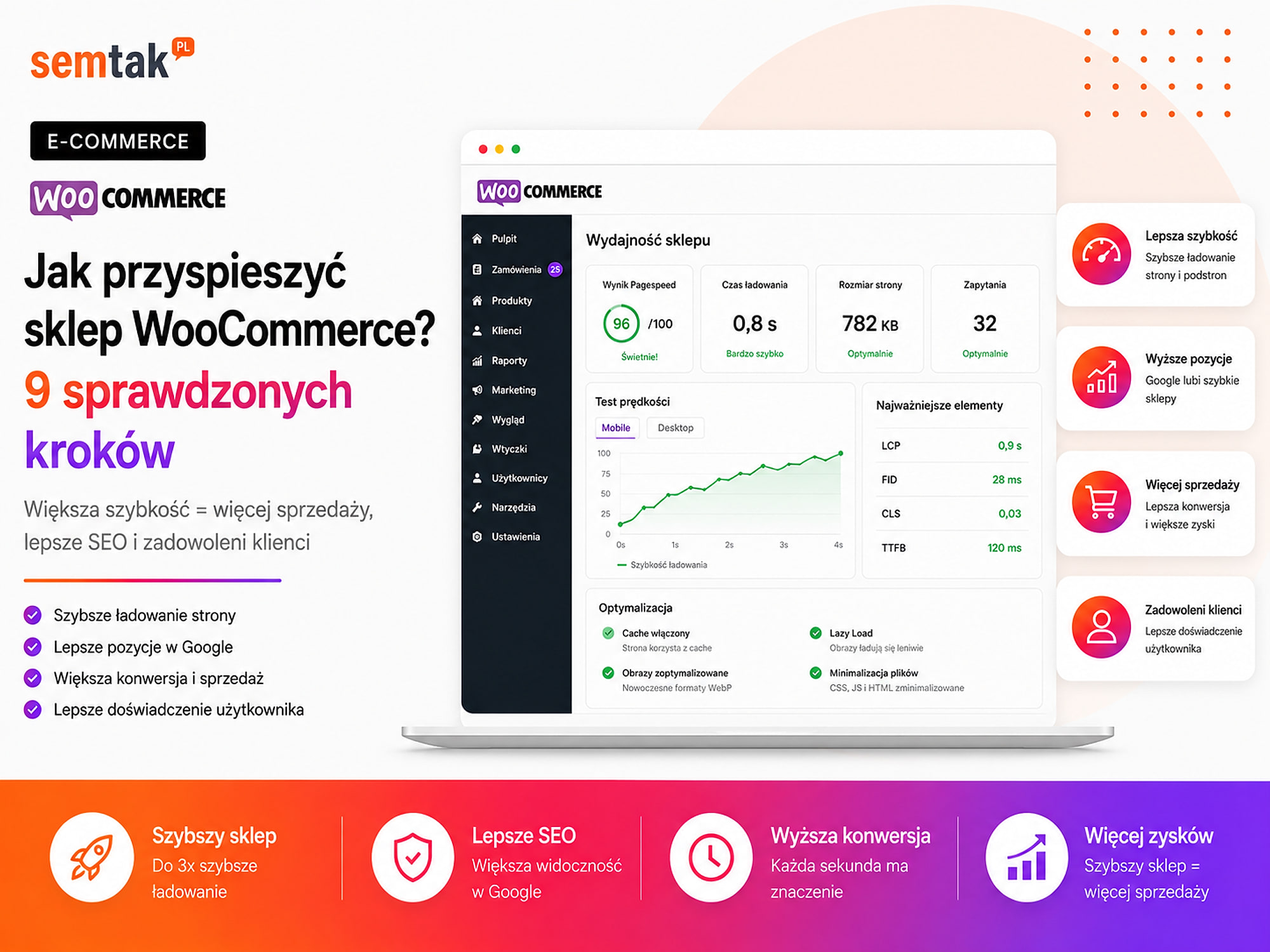
Your store opens quickly on your own computer, but customers complain about slow products and a slow cart? This is a common scenario. The owner uses a fast Wi-Fi connection, has some files saved in the browser and mainly checks the home page. The customer, on the other hand, arrives from a phone straight onto a product advertised on Google.
A slow WooCommerce store does not always need a more powerful server. The problem may be a product photo weighing several megabytes, a heavy theme, a misconfigured cache, a filter running too many queries or a chat script loaded on every subpage.
That is why speeding up a store should not begin with installing yet another plugin. First you need to establish what exactly is slow: the server, the product page, the JavaScript, the database, the cart or an external integration.
Below you will find nine steps that help bring order to this work without guessing and without the risky move of switching on every setting at once.
In short
A slow WooCommerce store rarely needs a more powerful server — more often the problem is heavy images, too many plugins, a lack of caching and poor hosting. Start speeding it up from the basics: image optimisation (WebP, lazy load), page and object cache (Redis), reducing the number of plugins, good hosting, an up-to-date PHP version, a CDN, cleaning up the database and minimising scripts. Measure the results on a phone and on field data, not on your own computer.
In a nutshell (TL;DR)
- First measure the category, the product, the cart and the checkout separately — not just the home page.
- Before making changes, create a backup and prepare a test environment.
- Good hosting is the foundation, but it will not fix a heavy theme or a badly written plugin.
- Public pages can be cached, but the cart, account and checkout require the right exclusions.
- Images should have the correct dimensions, sensible compression and the WebP or AVIF format.
- What matters is the quality of plugins and scripts, not only their number.
- In larger stores you need to check the database, background tasks and the way orders are stored.
- Finish every change with a test purchase on a phone.
- The goal is not solely a high PageSpeed score, but a smoother buying process.
Where to start speeding up WooCommerce?
Start speeding up the store with a measurement, a backup and establishing which subpages genuinely make it harder for customers to buy.
There is no single configuration suitable for every WooCommerce. A store works differently when it has:
- 50 simple products,
- 10,000 products with extensive filters,
- furniture with hundreds of variants,
- individual B2B prices,
- a connection to an ERP and several marketplaces.
That is why the nine steps should be treated as an order of diagnosis, not a list of settings to switch on without thinking.
| Step | What do you check? | Main effect |
|---|---|---|
| 1 | The real starting point | You know where the store is slow |
| 2 | Hosting and server | A shorter response time |
| 3 | Cache and CDN | Less work on subsequent visits |
| 4 | Images | Faster products and categories |
| 5 | Theme, CSS and JavaScript | A lighter part of the store visible to the customer |
| 6 | Plugins and external scripts | Fewer conflicts and less blocking |
| 7 | Database and background tasks | A smoother store and admin panel |
| 8 | WooCommerce features | Faster filters, cart and checkout |
| 9 | Tests and monitoring | A lasting effect without breaking sales |
Key terms in one place
Cache — a stored version of a page or data so that the store does not have to build everything from scratch on every visit.
CDN — a network of servers delivering images and files from a location closer to the customer.
Frontend — the part of the store visible to the customer.
Backend — the admin panel, server, database and processes running in the background.
TTFB — the time spent waiting for the first fragment of the server's response.
Staging — a test copy of the store on which you can check changes before deploying them for customers.
VPS — a dedicated, more powerful virtual server over which you have more control than with shared hosting.
Redis — a fast cache memory that can reduce the number of repeated reads from the database.
REST API — the way WooCommerce exchanges data with other systems (ERP, warehouse, BaseLinker).
Cron — a schedule of automatic background tasks: synchronisations, sending messages, updating data.
Step 1. Measure the store before making changes
First record the results of your most important subpages, so that later you know whether a change has genuinely helped.
Without a measurement it is easy to mistake an improvement for chance. You switch on a plugin, run one test and the score rises from 48 to 72 points. But you do not know whether the configuration helped or whether the test was run while the server was under less load.
Which subpages should you check? Test at least the home page, a popular category, a simple product, a product with variants, the cart, the checkout and the customer account, if it is important in the sales process. The home page may work quickly, while a product with an extensive gallery, reviews and variants may take considerably longer to load.
Which tools should you use? To begin with, PageSpeed Insights, the Core Web Vitals report in Google Search Console, the Network and Performance tabs in the browser, a test run on a real phone and information about resources and errors from the hosting are enough. Check mobile devices and computers separately.
What should you record before deploying? Prepare a simple table:
| Subpage | Mobile | Desktop | Main problem |
|---|---|---|---|
| Cosmetics category | 42 | 78 | Heavy thumbnails and the filter |
| Product with variants | 35 | 71 | Gallery and JavaScript |
| Cart | 58 | 86 | Slow shipping update |
| Checkout | 51 | 82 | Payment and courier scripts |
Do not judge the store solely on the basis of a single number. Also record LCP, INP or laboratory TBT, CLS, TTFB, the page weight, the number of requests, the largest files and the response time of the filters and the cart. We described the meaning of these metrics in the guide Core Web Vitals in a WooCommerce store.
Make a backup before changes
Before installing plugins, cleaning the database and modifying the cache, make a full backup of the files, the database and the server configuration (if you have access to it). In an active store it is best to work on staging — that way an error in JavaScript minification will not stop payments for real customers.
Step 2. Check the hosting and the server response time
If the server takes a long time to prepare the page, the browser starts downloading the images, styles and scripts later.
Hosting is the foundation, but not the only component of speed. The most expensive VPS will not fix a photo weighing 8 MB. And superbly prepared images will not solve the problem of a server that needs several seconds to begin its response.
What should you check on the hosting? Above all, pay attention to the available CPU and RAM, disk speed, PHP process limits, the execution time of database queries, the history of overloads and the ability to use server-side cache and Redis. The current PHP version, the server's location, regular backups and the way larger traffic is handled also matter. Do not be guided solely by the slogan "unlimited hosting" — resources almost always have technical limitations, even if they are not visible in the main price list.
Symptoms of an environment that is too weak. Hosting may be the problem when the store slows down during busier hours, the panel takes a long time to open orders, product imports regularly stall, the cart works worse during promotions or the server reports a memory overrun. If, in addition, the TTFB is poor across many different subpages, it is worth checking the server and the database more closely.
Do not change hosting without a diagnosis. Migrating to a more powerful server makes sense when the current environment genuinely limits the store. If the problem is heavy JavaScript or an external reviews system, changing hosting may improve the first stage of loading, but it will not solve the page's delayed response. Before choosing an infrastructure, read the guide hosting for WooCommerce — how to choose. If the store has outgrown ordinary hosting, the solution may be a properly configured server for WordPress and WooCommerce.
Step 3. Configure the cache without breaking the cart
A cache can significantly shorten the loading of public subpages, but the cart, account and checkout cannot be treated like an ordinary blog article.
WooCommerce shows some data individually for a specific user. This concerns, among other things, the contents of the cart, the chosen pickup point, the data of a logged-in customer, an individual B2B price, the available payment methods, a discount coupon and the saved session. If you save such a page in an ordinary cache, the customer may see outdated or incorrect data.
Page cache stores a ready-made version of the HTML. It works well on the home page, categories, products and articles. It requires the right exceptions for dynamic WooCommerce elements.
Browser cache lets the browser reuse previously downloaded images, fonts, styles and scripts. The customer does not have to download the same files on every subsequent subpage.
Object cache stores the results of frequently performed operations in fast memory, for example Redis. It can relieve the database, especially in larger stores and in the admin panel.
What should be excluded from the page cache? Most often, special protection is required by the cart, the checkout, the customer account, the order confirmation, dynamic prices, content that depends on the logged-in customer and selected AJAX requests. The exact exceptions depend on the cache system, the payments, the shipping, the theme and additional plugins.
Is it worth using a CDN? A CDN can speed up the delivery of product images, CSS files, JavaScript, fonts and downloadable files. It is especially useful when customers are located in different regions or countries. It will not, however, solve slow database queries or a poorly functioning checkout — a CDN speeds up the delivery of files, but it does not replace an efficient application server.
Do not switch everything on at once
Do not switch on all the functions of a cache plugin at the same time. After each group of changes, check the variants, the cart, the payment and the shipping — aggressive minification or delaying scripts can quietly break the checkout, even though the test score is rising.
Step 4. Reduce and load images correctly
An image should have dimensions matched to the place where it is displayed, and as small a weight as possible without a visible loss of quality.
An online store needs good photos. That does not mean, however, that the customer should download a photograph straight from the camera.
Example
The main product photo is 4000 × 4000 pixels, weighs 4 MB and is displayed at a width of 700 pixels. The browser downloads a file far larger than it needs. With one product this is a delay — with a category of 30 products the problem quickly multiplies.
Match the dimensions. Do not upload a file several thousand pixels wide if the store will never show it at that size. WordPress generates different versions of an image, but the theme has to use them correctly.
Choose a lighter format. WebP and AVIF can reduce the file weight compared with traditional JPG or PNG. The format does not, however, replace the right dimensions, sensible compression, a correct crop or an appropriate loading method.
Use lazy loading sensibly. Lazy loading means loading an image only when the user gets close to it while scrolling. It works well for photos lower down in the description, more distant products in a category, additional photos in a gallery and graphics in blog posts. You should not thoughtlessly delay the main image visible straight away — if it is the LCP element, starting the download later can worsen the score.
Check the thumbnails. A category should download thumbnails, not full product photos that are only scaled down by the browser.
Do not load the whole gallery on start. A product may have 12 photos, but at first the customer sees one or two. The rest can be loaded later, provided the gallery and the theme do it correctly.
What about image quality? The point is not to minimise the file as much as possible. In a furniture, jewellery or cosmetics store, the customer needs to see the details. The goal is a balance between quality, dimensions, weight and speed.
Step 5. Trim the theme, CSS, JavaScript and fonts
A light frontend does less work before showing the product and reacts faster to the customer's actions.
The theme is responsible for more than just the appearance. It can also add sliders, animations, icon libraries, several font sets, scrolling effects, extensive galleries and builder elements. Each of these additions has to be downloaded and processed by the customer's device.
Does a builder always slow the store down? Not every builder automatically means a slow page. The problem is more often the way it is used. A store may slow down when:
- every section has many nested containers,
- the code of modules that are not on the page is loaded,
- a single feature is handled by several add-ons,
- animations launch on every scroll,
- the whole store uses a heavy universal template.
What can be simplified? Check whether you really need a large slider, several product animations, parallax effects, multiple icon libraries and five variants of the same font. Removing a decorative element can have a bigger effect than another technical trick.
CSS and JavaScript. Files can be reduced, loaded only on the subpages where they are needed, deferred (if they are not required at the start) and split by page type. Not every script can be safely deferred, though — special care is required by product variants, payments, the pickup-point map, form validation and cookie consent handling.
Fonts. Slow fonts can delay text or cause it to change size after loading. Limit the number of font families, the number of weights, unused character sets and external connections, if the font can be stored locally.
Step 6. Check the plugins and external scripts
It is not only the number of plugins that matters, but what each of them does on the page, in the database and during the placing of an order.
A store with 40 light, well-written extensions may work more smoothly than a store with 15 heavy plugins. The problem is add-ons that load code on every subpage, run many database queries, fetch data from a slow REST API, duplicate the function of another plugin or save large amounts of logs and settings.
How to carry out a plugin audit? For each plugin, answer:
- Is it still in use?
- Is its function needed?
- Doesn't another plugin do the same thing?
- Does the code load throughout the whole store?
- Is there a simpler solution?
- Is the plugin updated and compatible with WooCommerce?
- What will happen after it is switched off?
Do not disable random extensions in an active store. Test them on staging.
Marketing scripts also have a cost. A page may load Google Tag Manager, Google Ads, the Meta Pixel, a heatmap tool, a chat, a newsletter popup, a reviews system and product personalisation. Each tool may be justified for the business. The problem starts when no one knows who deployed it, why it is still running, whether the data is being used, whether the script is not loaded several times and how it affects the customer's phone.
Mini-scenario
A store has slow INP. The owner changes hosting, compresses images and installs a cache, but the score barely improves. Only an analysis reveals that after every click the customer's phone is handling two analytics tools, a chat, a popup, a reviews widget, a personalisation system and three duplicated advertising tags. The problem was not in the images or the server — it was caused by code running directly in the customer's browser.
Step 7. Tidy up the database and background tasks
A large or disorganised database can slow down the panel, search, orders and the dynamic elements of the store.
WooCommerce stores, among other things, products and variants, orders, customer data, stock levels, sessions, settings, scheduled tasks and the data of additional extensions. Over time, information may remain in the database after old imports, removed plugins, failed tasks and long-stored logs.
Do not clean the database blindly
A plugin with a "clear everything" button can remove data needed for the store to work. Before working with the database: 1) establish which tables take up the most space, 2) check what created them, 3) assess whether the data is still needed, 4) remove only the information whose function you understand, 5) test the store after the change. The backup and staging from step 1 should also cover this work.
Check the wp_options table. WordPress stores important settings in it. Some of the data has autoload switched on, that is, it is fetched automatically during many WordPress calls. If plugins save a large amount of unnecessary data there, almost every subpage may carry out extra work.
Object cache. Redis can store frequently used data in fast memory instead of fetching it from the database every time. It usually makes the most sense in larger stores, an extensive panel, B2B systems, installations with high traffic and stores running many similar queries. It will not, however, replace order in the database or correct code.
Check the WooCommerce tasks. WooCommerce and its extensions carry out in the background, among other things, the sending of messages, product synchronisation, stock updates, subscription handling, webhook processing as well as imports and reports. Some tasks are run by cron, and some go into the WooCommerce queue. If many tasks are constantly waiting or ending with an error, check which extension creates them, why they are not being carried out, whether they reappear after removal and whether the problem is cron, the server or an external API.
Check HPOS. HPOS, that is High-Performance Order Storage, stores orders in tables prepared specifically for WooCommerce. It can improve work with a growing number of orders and reduce the load on the traditional WordPress tables. Before switching HPOS on in an existing store, you have to check plugin compatibility, synchronise the data, test new orders and verify payments, invoices and integrations. Do not activate a feature merely because its name contains the word "performance".
Step 8. Speed up the elements characteristic of WooCommerce
The biggest WooCommerce performance problems often concern the filters, variants, search, cart and checkout.
WooCommerce is a sales application, not an ordinary information page. It has to, among other things, check prices and stock, calculate taxes, update the cart, verify coupons, work out shipping, communicate with the payments and save the customer's session.
Product filters. Extensive filters can run heavy queries after every change of brand, colour, size, price, availability and material. With a few hundred products the problem may be invisible. With tens of thousands, a poorly designed filter may take a long time to recalculate every combination. Check above all the response time after choosing a filter, the way products are counted, the behaviour on a phone, the number of database queries and whether all the filters are really needed.
Search. The standard search may not be enough for a large catalogue. The problem may be suggestions generated after every character, searching too many fields, a very large number of variants or the lack of a separate search index.
Product variants. A product with hundreds of combinations may take a long time to generate the form, load a large portion of data, change the price slowly and make stock management harder. Sometimes it is better to split the product. At other times a configurator is needed that fetches the data in stages.
Cart fragments. WooCommerce can update information about the cart without reloading the whole page. This is convenient, but with a poor configuration it means extra queries on many subpages. Do not disable this mechanism without checking the theme, the mini-cart and the entire purchase path.
Checkout. The checkout combines customer data, taxes, coupons, shipping, pickup points, payments, invoices and consents. A slow checkout may be the result of a single external integration, not of the whole of WooCommerce. Check separately the loading of the form, the calculation of shipping, the choice of a pickup point, the change of payment method and the placing of the order.
External integrations. If during a customer's visit the store waits for a response from an ERP, a wholesaler or a courier system, a failure of that system can slow down the entire purchase. Heavier operations are worth performing — where possible — in the background, placing them in a queue or storing their results for a set time.
Step 9. Deploy in stages, test sales and monitor the results
Speeding up only ends when the store works faster and still correctly accepts orders.
A high PageSpeed score is not a success if, after the change, the coupon stopped working, the payment does not update the status, the pickup point is not saved in the order, the variant price is wrong or analytics does not record the purchase.
How to deploy changes safely?
- Carry out the initial measurement.
- Prepare staging.
- Introduce one group of changes.
- Clear the appropriate cache layers.
- Repeat the measurements.
- Go through the entire buying process.
- Deploy the change on the production site.
- Run the test again.
- Monitor the store after deployment.
Test an order after the changes. Check at least a simple product, a product with variants, a discount code, free and paid shipping, a pickup point, an online payment, the order status, the message to the customer, a change of stock level and the recording of the purchase in analytics.
Test under load when it is needed. A store may work well for one person and slow down when several dozen customers arrive from a campaign. A load test is worth considering before Black Friday, sending a large newsletter, a product launch, a seasonal sale or launching a larger advertising budget. Do not run an aggressive test on an active store without arranging it with the hosting and the developer.
Monitor the store afterwards as well. Performance can deteriorate after a plugin update, the installation of a new chat, a product import, a theme change, an expansion of the filters or an increase in traffic. Store speed is not a one-off task — it is part of the technical maintenance of WooCommerce.
Not sure whether the problem is in the server, the images, the JavaScript, the database or the checkout? As part of technical SEO we analyse the source of the problem, set the order of fixes and check the effects after deployment.
What does speeding up a WooCommerce store give you?
A well-executed speed-up shortens the customer's path to the product and the order, but it does not fix a weak offer or marketing mistakes.
A faster store can show the most important content sooner, react more smoothly to filters, reduce frustration on a phone, make it easier to get through the cart, make better use of traffic from ads, improve Core Web Vitals, reduce the load on the server and make the work of the panel smoother.
This does not mean an automatic rise in sales. If a product has an uncompetitive price, no information about shipping or poor photos, a faster server alone will not solve the problem. Performance creates the conditions for sales — it does not replace a good offer, convenient service or effective marketing.
The most common mistakes when speeding up WooCommerce
The most common mistakes come from improving the test score without checking how the change affects the real store.
Installing several plugins for the same task. Two plugins trying to handle cache, minification or images at the same time can cause conflicts and make diagnosis harder. Choose one main solution matched to the server environment.
Chasing a 100-point score. Removing a needed script can raise the test score and at the same time break a feature that customers use. The priority is a smooth purchase, not a perfect number.
Upgrading the server without fixing the code. More CPU and RAM can temporarily mask the problem, but it will not fix a plugin running hundreds of unnecessary operations.
Cleaning the database without identifying the data. A large table need not be unnecessary. It may contain orders, synchronisation information or logs needed to find a failure. First establish where it comes from.
Deferring every script. Some scripts have to work straight away. This concerns, among other things, variants, payments, forms and part of the consent mechanisms.
Making changes without a rollback plan. Before deploying, establish how quickly you will return to the previous configuration if orders stop working after the change.
What can you check yourself?
On your own you can find the most obvious problems with images, plugins, tasks and the buying process.
1. Open the store on a phone in private mode. Check a category, a product, a filter, a variant, the cart and the checkout. Note where the longest wait appears.
2. Compare a category and a product in PageSpeed Insights. Record the results and the largest files. Do not try to fix every warning straight away.
3. Check the weight of the main image. If a single product image weighs several megabytes, you have a concrete starting point.
4. Review the list of plugins. Mark the add-ons that are unused, duplicate functions, have not been updated for a long time or were installed only for a small effect. Do not remove them yet — first establish the dependencies and prepare a test.
5. Open Site Health. In the WordPress panel, check the PHP version, task errors, REST API problems, missing modules and large autoload data.
6. Review the scheduled WooCommerce tasks. See whether many tasks are waiting, ending in failure or being constantly retried.
7. Ask the hosting about resource usage. Ask for information about the CPU, RAM, PHP processes, slow queries and moments of overload.
8. Place a test order. Check the entire process on a phone, including the payment, shipping, messages and the change of stock level.
When is it worth hiring a specialist to speed up the store?
Technical help is needed when the problem spans several layers of the store or the changes may affect payments, orders and customer data.
It is worth commissioning an analysis when:
- the store remains slow despite the cache being configured,
- you do not know whether the problem is the hosting, the database or the frontend,
- the cart and checkout work worse than the products,
- the panel takes a long time to open orders,
- the task queue keeps growing,
- the store has several thousand products,
- the filters take a long time to generate results,
- products have hundreds of variants,
- the store uses an ERP, BaseLinker or several wholesalers,
- performance drops during campaigns,
- earlier changes broke part of the features.
A good report should answer what exactly is slow, on which subpages, what the cause is, what should be fixed first, who should make the change, what the risk of deployment is and how to check the effect. A report containing only messages copied from PageSpeed is not useful enough.
If, after the fixes have been made, no one in the company is going to keep an eye on updates, monitoring and the response to failures, the solution may be ongoing WordPress and WooCommerce technical maintenance.
Frequently asked questions
Why does a WooCommerce store run slowly?
The most common causes are poor hosting, heavy images, an extensive theme, slow plugins, a large amount of JavaScript, a disorganised database and overloaded filters or integrations.
Is WooCommerce slow by nature?
No. WooCommerce can work quickly, but it requires an environment and a configuration matched to the number of products, orders, variants and integrations.
Which plugin speeds up WooCommerce best?
There is no single best plugin for every store. A cache solution has to suit the server, the theme, the payments and the dynamic elements of WooCommerce.
Will changing hosting speed up the store?
Yes, if the current hosting limits the processor, memory, database or PHP processes. It will not, however, fully solve the problem of heavy images, JavaScript or badly written plugins.
Can the cart and checkout be cached?
An ordinary page cache should not show all customers the same cart or account contents. Dynamic subpages require the right exclusions and configuration.
Will WebP automatically speed up images?
WebP can reduce the file weight, but you still need to choose the right dimensions, compression and image loading method.
How many plugins can a fast WooCommerce store have?
There is no single safe limit. What matters more is how the plugins are written, where they load code and how many operations they perform.
Does a high PageSpeed score mean the store is fast?
Not always. You also need to check real user data and the behaviour of the filters, variants, cart and checkout.
Want to find out what is really slowing down your store?
Installing more plugins without a diagnosis can mask the problem or break the buying process. As part of technical SEO for WooCommerce we check the server, Core Web Vitals, images, code, database, plugins and the most important elements of the sales process. You receive an order of actions: what to fix first, what can wait and which changes require testing before deployment.
- Technical SEO — diagnosis of the source of the problem and the order of fixes.
- Core Web Vitals in a WooCommerce store — what LCP, INP and CLS mean.
- Hosting for WooCommerce — how to match a server to a store.
- WordPress and WooCommerce technical maintenance — maintaining performance after deployment.