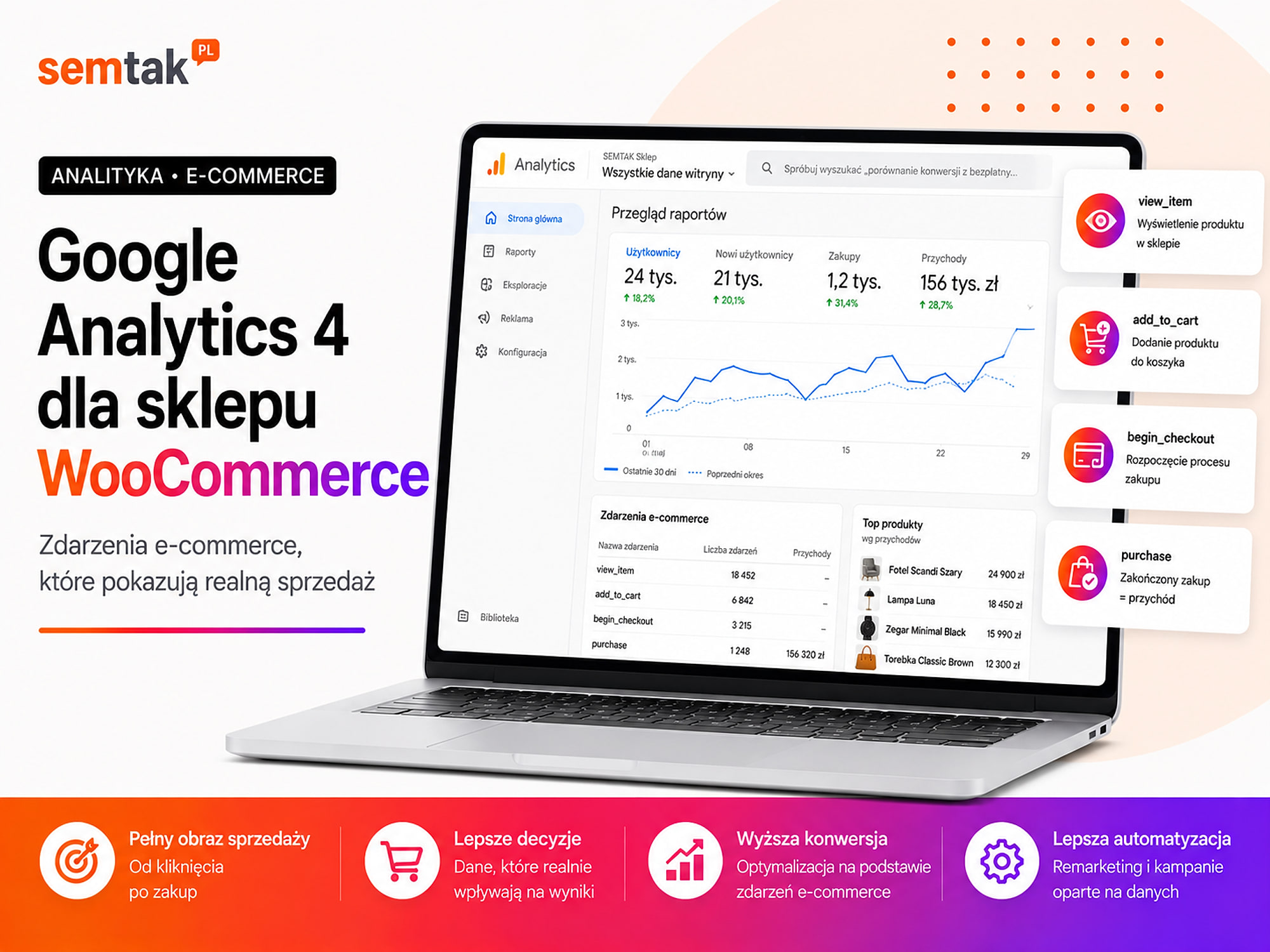
Google Analytics 4 for a WooCommerce store — e-commerce events

In WooCommerce you see 100 orders, but Google Analytics 4 shows 74. Google Ads reports yet another sales value, and the purchase path in GA4 ends at adding a product to the cart.
A result like this does not have to mean that GA4 "isn't working". Often the problem is that the store measures page views but does not correctly pass on the e-commerce events, the order value, the currency or the information about the purchased products.
Simply pasting in an identifier that starts with G- is not enough. GA4 has to receive information about the successive stages: viewing a product, adding it to the cart, starting checkout, choosing delivery, payment, the purchase and any possible return.
In this guide we show which e-commerce events to implement in WooCommerce, what data the purchase event should contain, how to test the measurement and why the GA4 result will not always be identical to the store's admin panel.
In short
A discrepancy such as "WooCommerce shows 100 orders and GA4 shows 74" usually does not mean that Analytics isn't working — it is a sign that the store is not correctly passing on the e-commerce events, the order value, the currency or the product data. Correct measurement requires configuring the events (view_item, add_to_cart, begin_checkout, purchase) with full parameters, ideally through a data layer and Google Tag Manager. Only consistent measurement lets you trust the reports and optimise your campaigns.
In a nutshell (TL;DR)
- The GA4 code on its own measures basic traffic, but it does not guarantee correct measurement of products, the cart and purchases.
- The basic store funnel is made up of the events
view_item,add_to_cart,begin_checkoutandpurchase. - A more precise checkout analysis also requires
add_shipping_infoandadd_payment_info. - The
purchaseevent should contain a uniquetransaction_id, the currency, the value and anitemsarray. - A single order must not be sent several times after a refresh of the thank-you page.
- Product identifiers must be consistent on the product page, in the cart, in the purchase, in Merchant Center and in advertising systems.
- WooCommerce remains the source of information about the actual orders. GA4 serves mainly to analyse customer behaviour and traffic sources.
- Events have to be checked through a full test order, not just by the presence of the GA4 code.
- Returns require separate handling of the
refundevent if they are to correct the e-commerce data.
What does Google Analytics 4 measure in a WooCommerce store?
GA4 records user actions as events and links them with information about products, traffic sources and sessions.
In a store an event can be the display of a product list, a click on a product within a category, the opening of a product page, adding a product to the cart, removing a product from the cart, starting checkout, choosing delivery, choosing payment, the purchase or a return. Thanks to this you can check not only the number of visits, but also which products are viewed, what is most often added to the cart, at which stage customers drop off, which traffic sources generate purchases, which categories sell and how mobile and desktop users behave.
GA4 does not replace WooCommerce. WooCommerce records the actual orders, their statuses, payments, returns and operational data. GA4 may fail to register part of the sales because the user did not consent to analytics, the browser blocked the script, the customer closed the page before the event was sent, a JavaScript error occurred, the integration did not handle a specific payment method or the customer did not return from an external payment gateway. It may also overstate sales if the same order is sent several times.
Two different sources of truth
WooCommerce tells you which orders actually exist. GA4 helps you establish how users reached them. This distinction is crucial — for every discrepancy WooCommerce remains the source of information about sales, while GA4 is the tool for analysing behaviour and traffic channels.
What does the e-commerce funnel look like in GA4?
The funnel should reflect the successive steps of the customer — from seeing a product to the purchase.
| Stage | GA4 event | When should it fire? |
|---|---|---|
| List view | view_item_list | After products are shown in a category, search or a recommended section |
| Product click | select_item | After selecting a product from a specific list |
| Product page | view_item | After opening the product details |
| Add to cart | add_to_cart | After a product has been successfully added |
| Remove from cart | remove_from_cart | After removing a product or reducing the quantity |
| Cart view | view_cart | After opening the cart page or panel |
| Start checkout | begin_checkout | After moving on to placing the order |
| Choose delivery | add_shipping_info | After confirming the data or delivery method |
| Choose payment | add_payment_info | After confirming the payment method |
| Purchase | purchase | After the purchase is created according to the adopted logic |
| Return | refund | After a full or partial return |
The basic minimum for funnel analysis is view_item, add_to_cart, begin_checkout and purchase. If you want to know whether customers drop off because of the delivery cost or the payment method, you also need add_shipping_info and add_payment_info. An empty stage in the report does not always mean that customers do nothing there — it may mean that the relevant event has not been implemented.
The most important GA4 events for WooCommerce
view_item_list — display of a product list. The event tells you which products were shown in a given section. A list can be a category, a search result, a list of bestsellers, a section of similar products, a cross-sell in the cart or a list of promotions. Useful data includes item_list_id, item_list_name, items and the product position recorded as index. Thanks to this you can check whether a product sells more often after being shown in a category, in search or in a recommended section.
select_item — product click. The event should fire after a product is selected from a list. It lets you analyse the effectiveness of categories, clicks on recommendations, internal search results and a product's position in the list. select_item should pass the same list name that previously appeared in view_item_list.
view_item — display of the product page. This is one of the most important top-of-funnel events. It should contain, among others, item_id, item_name, the price, the currency, the category, the brand and the variant if it is relevant. For products with variants you have to decide whether the event reports the parent product, a specific variant, the default variant or the currently selected colour or size. The most important thing is consistency — if view_item uses the main product ID and purchase uses the variant SKU, GA4 may treat them as two different products.
add_to_cart — adding a product to the cart. The event should be sent only after a product has been successfully added. In WooCommerce adding can happen on the product page, directly from a category, via AJAX without a reload, through a quick purchase or from a related-products section — each mechanism has to be checked separately. A typical mistake: the customer clicks "Add to cart" but has not chosen a size; WooCommerce shows an error message, yet GA4 still records add_to_cart. The report then shows an addition that did not actually happen.
begin_checkout — starting checkout. The event should fire after a genuine move to placing the order — it should not be sent every time the cart is opened. The value and products should correspond to the current cart, taking into account quantities, variants, prices, coupons and discounts. If many people add a product to the cart but do not start checkout, the problem may concern the delivery cost, trust, an unclear price, a discount code or a broken cart. We describe the process of recovering such users in the guide abandoned carts — how to recover a customer.
add_shipping_info — choosing delivery. The event should be sent after the delivery method or shipping information has been confirmed. The shipping_tier parameter may contain, for example, InPost parcel locker, DPD courier, personal pickup, pallet delivery or express shipping. A large drop before this event may point to a problem with the address form; a drop after the delivery methods are shown may mean the price is too high, the expected option is missing, the delivery time is too long or there is an error when selecting a pickup point.
add_payment_info — choosing payment. The event tells you that the customer chose or confirmed a payment method. The payment_type parameter may contain, for example, card, fast bank transfer, Apple Pay, cash on delivery, traditional transfer or instalments. Do not pass card numbers, account numbers or any other sensitive financial data to GA4 — the name of the method is enough.
purchase — the purchase. This is the most important sales event. Its incorrect configuration distorts revenue, ROAS and the assessment of campaigns. It should contain transaction_id, currency, value, items and optionally shipping, tax and coupon. An example of a simplified structure:
gtag("event", "purchase", {
  transaction_id: "WC-15482",
  value: 1249.00,
  currency: "GBP",
  shipping: 19.99,
  coupon: "SPRING10",
  items: [
    {
      item_id: "DESK-VARIUS-120-OAK",
      item_name: "Varius desk 120 × 65 cm",
      item_category: "Standing desks",
      item_variant: "natural oak / black frame",
      price: 1249.00,
      quantity: 1
    }
  ]
});
transaction_id should be a unique and stable order identifier. Do not use the purchase date, the fixed text order, the session ID or a random number generated on every refresh.
refund — the return. The event lets you pass a full or partial return. It should use the same transaction_id that was sent with the purchase. For a partial return you can also pass the item_id, the returned quantity, the value of the return and the currency. If the store does not report returns, GA4 may show sales that were ultimately not retained — this is very important in industries with a high return rate, for example clothing, footwear or items ordered in many variants.
What should the items array contain?
The items array describes the products taking part in a given event.
| Parameter | Meaning | Example |
|---|---|---|
item_id | Stable identifier | SIDEBOARD-DIANA-150-WHITE |
item_name | Product name | Diana sideboard 150 cm |
item_brand | Brand | Diana Home |
item_category | Main category | Sideboards |
item_category2 | Next category level | Living-room sideboards |
item_variant | Variant | white gloss |
price | Unit price | 899.00 |
quantity | Number of units | 1 |
discount | Item discount | 50.00 |
coupon | Coupon code | SPRING10 |
item_list_name | List name | Living-room sideboards |
index | Position in the list | 3 |
You do not have to send every available parameter. Choose data that is true, complete, stable and useful in reports. It is better to send eight correct parameters than a dozen fields filled with random values.
SKU or WooCommerce ID as item_id?
The most important thing is the consistency of the identifier across the entire purchase path.
The WooCommerce ID has advantages: it exists for every product, it is unique within a given installation and it is technically easy to access. Limitations: it may change after a migration or re-import and does not always match the identifier in the ERP, the feed and the advertising systems.
The SKU has advantages: it can link the store with the warehouse, the ERP and Merchant Center, it is more readable in business terms and it can stay stable after a migration. Limitations: not every product has a SKU, an import may create duplicates, and variants should have their own identifiers.
What to choose? If the store has correct and unique SKUs for products and variants, this is often a practical choice. If the SKUs are incomplete or inconsistent, it is better to use stable IDs than to pass incorrect data. Do not mix several systems — view_item with the product ID, add_to_cart with the variant SKU, purchase with the EAN and refund with a different ID from the ERP will create seemingly different products in the reports.
How to calculate the value of the purchase event?
The value should follow a single, written definition of revenue.
Example order: two products at £100, one product at £50, a £20 discount, £15 delivery. You have to decide whether the item prices are before or after the discount, whether value includes delivery, whether delivery goes separately into shipping, whether you report gross or net values, how you treat tax and how you handle partial returns. The most important thing is consistency — if WooCommerce shows gross with delivery, GA4 reports net without delivery, and Google Ads receives yet another value, comparing the systems will be misleading.
If you send the value parameter, also pass currency (e.g. GBP, EUR, USD). In a multi-currency store the currency should follow the specific order rather than being hard-coded as GBP.
When should purchase fire?
The event should be sent once, at the moment that matches the adopted way of recognising a purchase.
After the order is created. Advantage: it also covers traditional bank transfer and cash on delivery. Risk: some orders may never be paid, and the report will include transactions that are later cancelled.
After payment is confirmed. Advantage: it reports more reliable online sales. Risk: it may miss transfers and cash on delivery, it depends on the payment gateway integration and it requires handling order status changes.
On the server side. Advantage: it does not depend solely on the loading of the thank-you page. Risk: it requires a more advanced implementation, you have to handle consent and duplication, and the same order may be sent from both the browser and the server.
There is no single model suitable for every store. The way you measure should match the payment methods and the way the company understands a "completed purchase".
Event, key event and conversion — how do they differ?
In GA4 all actions are events. Selected events can be marked as important for the business, i.e. key events — for a store the most important will usually be purchase. Events such as view_item, add_to_cart and begin_checkout are needed for funnel analysis, but they should not automatically have the same value as a sale.
In Google Ads you still work with primary and secondary conversions. If a campaign is optimised at the same time for purchase, add to cart and product view, the algorithm may focus on actions that are easy to obtain but bring no revenue. This matters especially for product campaigns and Performance Max. We describe how to prepare campaigns in the article Google product advertising — Shopping and Performance Max in practice.
How to implement GA4 in WooCommerce?
Most often you use a plugin, Google Tag Manager with a data layer or a dedicated implementation.
An integration plugin can automatically pass page views, product views, additions to the cart, the start of checkout and purchases. Advantages: quick launch, less coding, configuration in the WordPress panel. Risks: a limited set of parameters, problems with a custom checkout, incomplete handling of variants, no returns and conflicts with other plugins. The popularity of a plugin does not guarantee that it will correctly handle a specific store.
Google Tag Manager and dataLayer. The dataLayer (data layer) passes structured information from the store to Google Tag Manager. It can contain the event name, the product IDs, the cart value, the currency, the list of items, the coupon and the delivery method. An example process: WooCommerce adds a product to the cart → the store places the data in the dataLayer → GTM detects the event → the GA4 tag sends add_to_cart → the same data can be used in Google Ads. Advantages: more control, shared data for several systems, easier testing and the option to extend it. Risks: incorrect rules can duplicate events, a change of theme or checkout can break the measurement, and the data layer requires maintenance and documentation.
A dedicated or server-side implementation makes sense when the store has a custom checkout, a headless frontend, several domains, its own payment integrations, a large advertising budget, a need to send returns from the backend or an extensive ERP integration. It can combine browser events, Google Tag Manager, server-side GTM, the Measurement Protocol and WooCommerce or ERP data. The most important problem is deduplication — a single order must not be treated as two different transactions.
Plugin or Google Tag Manager?
| Area | Plugin | GTM and data layer |
|---|---|---|
| Speed of implementation | Usually higher | Requires configuration |
| Control over data | Depends on the plugin | Greater |
| Handling of custom features | Limited | Flexible |
| Testing | Depends on the solution | GTM preview and DebugView |
| Integration with ads | Sometimes limited | Data can feed several systems |
| Maintenance | Plugin updates | Maintenance of GTM and dataLayer |
| Typical store | Simple, standard | Extensive or custom |
For a small store a good plugin may be enough. With several advertising systems, a custom checkout and a large catalogue, an organised data layer may be better.
Cookie consent and Consent Mode
User consent affects the scope of data available in GA4.
You have to check the default consent state, the tags' reaction to acceptance, the reaction to refusal, the option to change the decision and the cooperation of the banner with GTM or the Google tag. Typical problems: the GA4 tag fires before the user's choice, the user accepts analytics but the consent state is not updated, the banner blocks all events even after acceptance, or different plugins try to control consent at the same time. Consent Mode does not replace a correct banner or proper legal configuration — it is a technical mechanism for passing the consent state to Google tags.
How to analyse e-commerce data in GA4?
Purchase journey. The report helps you check the transition between viewing a product, adding it to the cart, starting checkout and the purchase. If users view products but do not add them, the problem may concern the offer, the price, the variants, the photos, the description or mismatched traffic. If the store is slow, especially on mobile devices, it is also worth analysing Core Web Vitals in a WooCommerce store.
Checkout journey. The report focuses on the final stages: begin_checkout, add_shipping_info, add_payment_info, purchase. It can reveal a problem with the address form, drop-offs after the shipping cost is shown, a missing expected payment or a gateway failure.
E-commerce purchases. The product report can show views, additions to the cart, purchases, the number of units, revenue, brands, categories and variants. The quality of the report depends on the quality of the items array — if the same manufacturer appears as "Samsung", "SAMSUNG", "samsung" or an empty field, GA4 will show several separate values.
Traffic acquisition. The report lets you compare, among others, organic Google entries, Google Ads, the newsletter, social media, comparison sites, referring pages and direct traffic. Do not treat attribution as a flawless record of the customer's whole journey — a user may see an ad, come in later via Google, return from an email and buy directly, while different systems may assign the purchase to a different point in that path.
An example of funnel analysis
Let us assume GA4 shows:
| Stage | Users | Move on |
|---|---|---|
| Product view | 10,000 | — |
| Add to cart | 800 | 8% |
| Start checkout | 400 | 50% |
| Purchase | 200 | 50% |
The biggest drop occurs between the product page and the cart. It is then worth checking the price, availability, variants, description, photos, delivery cost and how well the traffic source is matched. Another store may have a result like this:
| Stage | Users | Move on |
|---|---|---|
| Product view | 10,000 | — |
| Add to cart | 1500 | 15% |
| Start checkout | 1100 | 73% |
| Purchase | 220 | 20% |
Here the problem is closer to the end of the process. Possible causes are the form, a mandatory account, the shipping cost, a missing fast-payment option, a payment error or a broken pickup-point selection. We describe a broader model for working on the result in the article how to increase sales in an online store — 4 levers.
Why do GA4 and WooCommerce show different results?
A small difference is normal. A large or unstable gap has to be analysed.
GA4 may show fewer purchases because of a lack of consent, script blocking, JavaScript errors, no return from payment, a different time zone, an unsupported payment method or a different moment of recognising a purchase. It may show more purchases because of several GA4 codes, two analytics plugins, parallel measurement in GTM, a repeated send after a page refresh or a different transaction_id for the same transaction.
When comparing the systems, check the same date range, the same time zone, the same currency, the value definition, the order statuses, the way returns are handled and any test orders. The goal need not be an identical result down to a single order — what matters is that the difference is stable, understandable, monitored and taken into account when making decisions.
The most common mistakes in a GA4 implementation
The most damage is done by: missing e-commerce events, duplicate integrations, a double purchase and inconsistent identifiers.
- 1. Just the GA4 code without e-commerce — the store measures page views but does not pass on products, the cart or purchases.
- 2. Several integrations sending the same data — the theme, a plugin and GTM report one event in parallel.
- 3. A double
purchase— a refresh of the thank-you page or a second tag causes the order to be recorded again. - 4. No consistent identifiers — the product page, the cart and the purchase use different IDs for the same item.
- 5. An incorrect value or currency — GA4 reports an amount inconsistent with the adopted way of calculating revenue.
- 6. No testing of variants, deliveries and payments — measurement works for a simple product and one gateway, but misses other paths.
- 7. All funnel stages as primary conversions — campaigns optimise for additions to the cart instead of for actual sales.
What can you check yourself?
The checklist below replaces separate, overlapping test lists.
- Check the number of integrations. Establish whether GA4 is sent through a plugin, GTM, the theme or several tools at once.
- Run DebugView or the GTM preview. Do not test only in the standard reports.
- Open a category and a product. Verify
view_item_list,select_itemandview_item. - Test a simple and a variable product. Check the ID, name, variant, price and currency.
- Add a product to the cart. Make sure
add_to_cartis sent once and only after a successful addition. - Change the quantity and remove a product. Check the current cart values.
- Use a coupon. Verify whether the discount is reflected in the products and the order value.
- Start checkout. Check
begin_checkoutand the contents of theitemsarray. - Choose delivery and payment. Verify
shipping_tierandpayment_type. - Place a test order. Compare the
transaction_id, value, currency, products, quantities and delivery with WooCommerce. - Refresh the thank-you page.
purchaseshould not be recorded again as a new purchase. - Repeat the test for a second payment. Test, for example, card and traditional transfer or cash on delivery.
- Check consent. Run a test after accepting and after refusing analytics.
- Compare several days of data. Line up WooCommerce, GA4 and Google Ads by the same date, currency and value definition.
- Check a return. Establish whether a full or partial return sends the
refundevent.
When you are done, write down the list of implemented events, the data source, the product identifier used, the value definition, the moment purchase is sent, the way returns are handled and the list of tags and plugins. Such documentation reduces the risk that the next update or change of contractor will break the measurement again.
When is it worth hiring a specialist?
Help is needed when the GA4 and WooCommerce data diverge, purchase is recorded several times or the store has a custom checkout and many integrations.
Consider support when GA4 shows significantly fewer or more purchases than WooCommerce, purchase is recorded several times, the product reports are empty, the store uses a custom checkout, several payment gateways are running, the store handles several currencies, the product data comes from an ERP, return measurement is needed, server-side tracking has been implemented, the consent system does not work with the tags, Google Ads optimises on incorrect conversions or, after a WooCommerce update, the events stopped working.
A good implementation should include a measurement plan, a list of events, the structure of items, the value definition, the configuration of GA4 and GTM, consent, tests, a comparison with WooCommerce and documentation. As part of analytics and conversion tracking you can put GA4, GTM, WooCommerce events, Consent Mode and the connection with Google Ads in order.
Frequently asked questions
Is simply connecting GA4 to WooCommerce enough?
No. The basic code can measure traffic and page views, but the store needs additional e-commerce events, transaction parameters and product data.
Which events are the most important for a store?
The basic minimum is view_item , add_to_cart , begin_checkout and purchase . For a more precise checkout analysis it is also worth implementing add_shipping_info and add_payment_info .
What should the purchase event contain?
A unique transaction_id , the value, the currency and an items array with the purchased products. You can also pass the tax, delivery and coupon.
Why does GA4 show fewer orders than WooCommerce?
The cause may be cookie consent, script blocking, no return from payment, integration errors or a different moment of recognising an order as a purchase.
Why is a single purchase recorded several times?
Most often because of several integrations, a parallel Google Tag Manager or purchase firing again after a refresh of the thank-you page.
Should add_to_cart be a conversion?
It can be a supporting event, but usually it should not replace the purchase as the campaign's main sales goal.
Does GA4 measure WooCommerce returns?
It depends on the integration. You have to check whether the store sends the refund event with the correct transaction identifier and returned products.
How can I check whether the events work?
Place a full test order and watch the events in the Google Tag Manager preview, Tag Assistant or DebugView. Then compare the transaction with WooCommerce.
Reliable measurement first, decisions afterwards
Google Analytics 4 for WooCommerce should measure the whole customer journey: the list view, the product choice, the product page, adding to the cart, starting checkout, choosing delivery, choosing payment, the purchase and any possible return.
The most important element remains purchase — it has to be sent once and contain the correct identifier, value, currency and products. Do not judge an implementation based on the message "GA4 is connected": place a real test order, check variants, the coupon, delivery, payment, a page refresh and compare the result with WooCommerce. Incorrect measurement affects more than the report — if Google Ads receives double purchases or an incorrect sales value, the algorithm may direct the budget to the wrong products and users.
If you want to check whether the current data is reliable, we can analyse the whole process — from view_item to the purchase and the return. As part of implementing analytics and conversion tracking we will put the events, GTM, consent, the Google Ads integration and the implementation documentation in order.